
An SSD is a type of storage drive that has quietly become one of the biggest upgrades you can make to a computer, and it is the reason modern laptops start in seconds instead of minutes. SSD stands for solid-state drive, and it stores your files, apps, and operating system on flash memory chips, with no moving parts. In this guide, we explain what an SSD is, how it is different from a traditional hard drive, which types of SSD exist, and whether you should upgrade.
What Is an SSD?
An SSD is a storage device that uses flash memory to store data, instead of the spinning magnetic disks used by a traditional hard disk drive, or HDD. Because it has no moving parts, an SSD is much faster, quieter, and more durable than a hard drive. When you turn on a computer with an SSD, the operating system loads in seconds, apps open almost instantly, and files copy far more quickly. SSDs are now standard in almost every new laptop, and they are common in desktop computers as well, either as the main drive or alongside a larger hard drive used for storage. An SSD looks different depending on its type. Some are the same size and shape as a laptop hard drive, so they can replace one directly. Others are small sticks, about the size of a piece of chewing gum, that plug into a slot on the motherboard. Some are external drives that connect by USB, and they are useful for backing up files or for carrying large amounts of data with you. Whatever its shape, the job is the same. It stores your data and gives it back to you as quickly as possible, and that speed is what makes a computer feel fast.
How Is an SSD Different From a Hard Drive?
The difference between an SSD and a hard drive comes down to how they store data. A hard drive stores data on spinning metal disks, called platters, and it uses a mechanical arm to read and write data, a bit like a record player. That mechanical movement takes time, and it makes the drive slower, noisier, and more vulnerable to damage if it is dropped. An SSD stores data on flash memory chips, and it can read and write data electronically, with no movement at all. This makes it much faster, often five to ten times faster than a hard drive for everyday tasks, and up to fifty times faster for some operations. A computer with an SSD will start up in ten to twenty seconds, while the same computer with a hard drive may take a minute or more. Apps open faster, files search faster, and the whole computer feels more responsive. SSDs are also more durable, because there are no moving parts to break, they use less power, which helps laptop battery life, and they are completely silent. Hard drives still have advantages. They are much cheaper per gigabyte, so a four-terabyte hard drive costs far less than a four-terabyte SSD, and they are a good choice for storing large amounts of data that you do not need to access quickly, such as a large photo library or a backup. For the drive that runs your operating system and your apps, however, an SSD is almost always the better choice in 2026.
Types of SSD: SATA, NVMe, and External
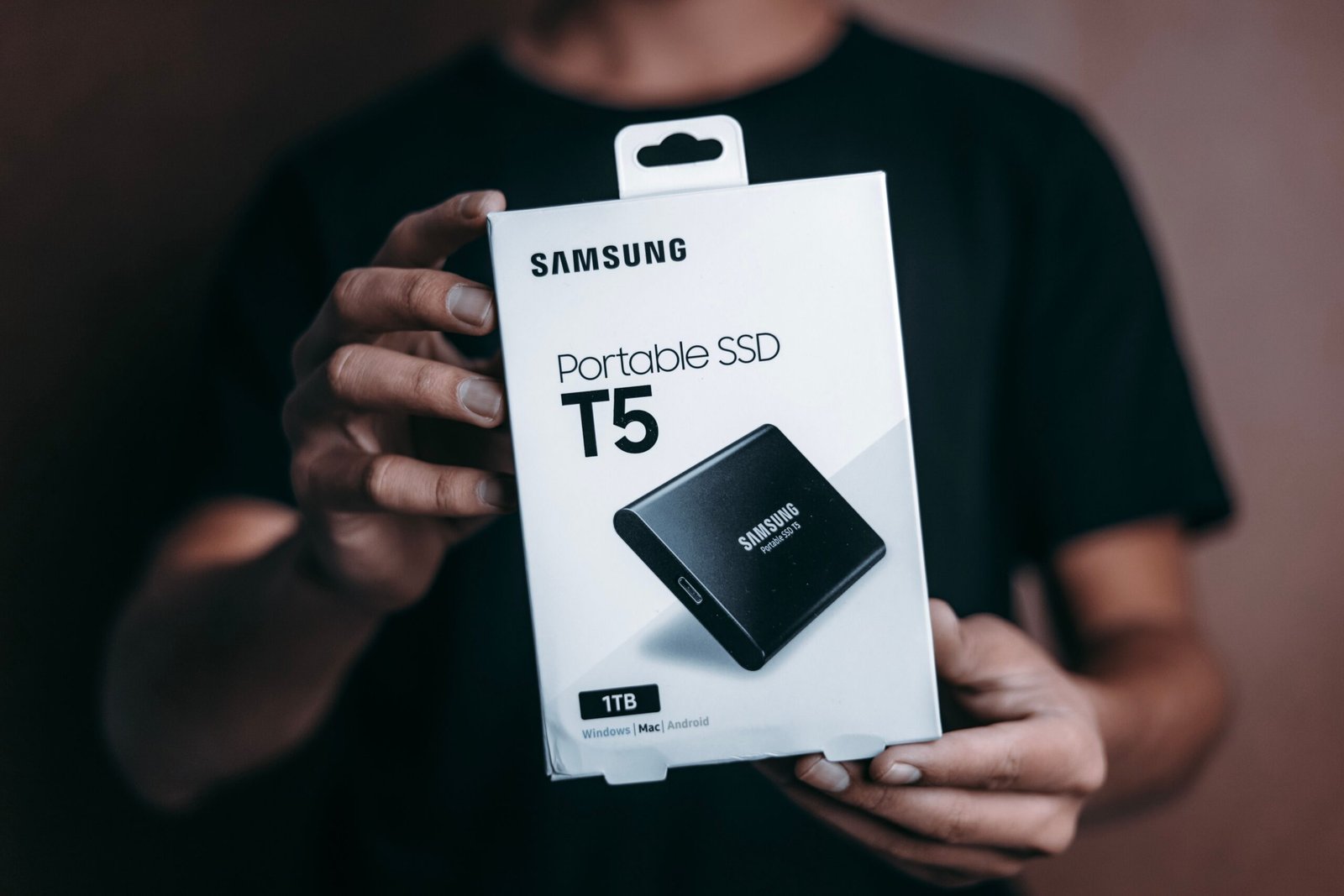
There are three main types of SSD, and they differ in speed and in how they connect to your computer. SATA SSDs are the oldest and slowest type, but they are still much faster than a hard drive. They use the same connection as a hard drive, and they are usually shaped like a small, flat rectangle, about 2.5 inches across. They are a good choice for upgrading an older laptop or desktop, because they fit in the same space as the hard drive they replace. NVMe SSDs are much faster, and they plug into a special slot on the motherboard, called an M.2 slot. They are small sticks, and they can be up to seven times faster than a SATA SSD, which makes them the best choice for a new computer, for gaming, and for video editing. Most new laptops and desktops use NVMe SSDs, and they are now affordable enough for most people. External SSDs connect by USB, and they are used for backing up files, for carrying data between computers, and for expanding the storage of a laptop or a games console. They are faster than an external hard drive, they are smaller and more durable, and they are a good choice if you need portable storage. When you shop for an SSD, check which type your computer supports, because a SATA SSD will not fit in an M.2 slot, and an NVMe SSD will not fit in a SATA bay. If you are not sure, check your computer’s manual or the manufacturer’s website.
How Much Storage Do You Need?
How much SSD storage you need depends on what you do with your computer. For most people, 512 gigabytes is a good starting point in 2026. It is enough for the operating system, your apps, and a reasonable number of photos, documents, and videos, with room to spare. If you only use your computer for browsing, email, and office work, 256 gigabytes may be enough, although it can fill up quickly if you install many apps or store a lot of photos. If you play games, edit video, or work with large files, you will want one terabyte or more, because modern games can take up 100 gigabytes or more each, and 4K video files are very large. It is also worth leaving some free space on your SSD, because an SSD that is almost full will slow down, and it will wear out faster. Aim to keep at least ten to twenty percent of the drive free. If you need more storage, you can add a second drive, or you can use an external drive for files you do not need every day. If you are choosing between a smaller, faster SSD and a larger, slower one, the larger one is usually the better choice, because running out of storage is more frustrating than a small difference in speed. To decide whether an external drive is right for you, read our guide on what an external hard drive is and whether you still need one in 2026.
Should You Upgrade to an SSD?
Upgrading to an SSD is one of the best upgrades you can make to an older computer, and it is often the single biggest improvement in everyday speed. If your computer still uses a hard drive, and it feels slow when it starts up, when it opens apps, or when it searches for files, an SSD will make it feel like a new machine. The upgrade is usually straightforward on a desktop computer, and it is possible on many laptops, although some thin laptops have their storage soldered in and cannot be upgraded. Before you upgrade, check that your computer can take an SSD, back up your files, and make sure you have a way to move your operating system and your data to the new drive. You can clone your old drive to the new SSD, using free cloning software, or you can do a fresh install of your operating system and then copy your files back. If you are not comfortable doing this yourself, a computer shop can do it for you, usually for a modest fee. The cost of an SSD has fallen a great deal, and a good 500-gigabyte or one-terabyte SSD is now affordable for most people. If your computer is very old, or if it has other problems, such as a slow processor or very little memory, an SSD may not be enough on its own, and you may be better off buying a new computer. Our guide on how to speed up a slow computer without buying anything can help you decide whether a free fix will help, or whether an upgrade is the right move.
How to Look After Your SSD
SSDs need very little maintenance, but a few habits will help them last longer. Keep your operating system updated, because updates include drivers and firmware that help the SSD work efficiently. Do not defragment an SSD, because defragmenting is designed for hard drives, and it does unnecessary work on an SSD that can wear it out faster. Instead, make sure that TRIM is enabled, which is a feature that helps the SSD manage its free space, and it is usually turned on by default in Windows and macOS. Keep some free space on the drive, as we mentioned above, and avoid filling it completely. Back up your files regularly, because although SSDs are reliable, they can fail without warning, and when they do, it is often harder to recover data from them than from a hard drive. Use a backup service or an external drive, and check your backups from time to time. If your SSD is running slowly, check that it is not almost full, that your operating system is updated, and that you have not installed a program that is constantly writing to the drive. With normal use, an SSD should last for many years, and most people will replace their computer long before the SSD wears out.
Conclusion
An SSD is a storage drive that uses flash memory instead of spinning disks, and it is much faster, quieter, and more durable than a traditional hard drive. SATA SSDs are a good upgrade for older computers, NVMe SSDs are the fastest choice for new computers, and external SSDs are useful for portable storage and backups. For most people, 512 gigabytes is a good starting point, and one terabyte is better if you play games or edit video. If your computer still uses a hard drive and feels slow, upgrading to an SSD is one of the best upgrades you can make, and it will make your computer feel faster in almost everything you do.
Frequently Asked Questions
What is an SSD in simple terms?
An SSD is a storage drive that uses flash memory chips to store your files, instead of spinning disks. It is much faster than a hard drive, it has no moving parts, and it makes your computer start up and open apps far more quickly.
Is an SSD better than a hard drive?
For speed, durability, and battery life, yes, an SSD is better than a hard drive. A hard drive is still cheaper per gigabyte, so it is better for storing large amounts of data that you do not need to access quickly, such as backups.
How long does an SSD last?
Most SSDs last for many years under normal use, often five to ten years or more. They wear out slowly with use, but most people will replace their computer before the SSD reaches the end of its life.
Can I replace a hard drive with an SSD?
Yes, in most desktop computers and many laptops, you can replace a hard drive with a SATA SSD of the same size, or add an NVMe SSD if your computer has an M.2 slot. Check your computer’s manual first, and back up your files before you start.
Do I need an SSD for gaming?
You do not strictly need an SSD for gaming, but it makes games load much faster, and some modern games now require an SSD. If you play games, an NVMe SSD is one of the best upgrades you can make.