
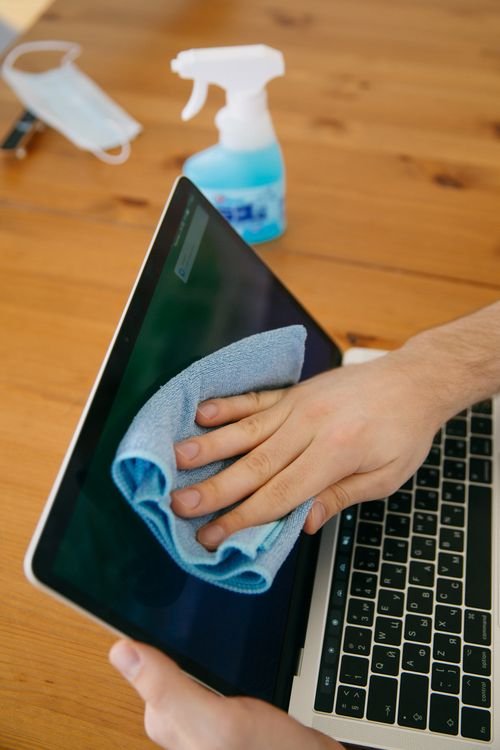
A clean laptop looks better and lasts longer. Photo: Pexels.
Your laptop goes everywhere with you: to the office, to the coffee shop, to the sofa, and sometimes to the kitchen. Along the way it picks up fingerprints, dust, crumbs, and germs. Learning how to clean your laptop screen and keyboard safely is one of the simplest ways to keep it looking good, working well, and lasting longer.
Cleaning a laptop is not hard, but it is easy to do it wrong. The wrong cloth or the wrong cleaner can scratch a screen or damage a coating, and liquid in the wrong place can harm the keyboard. In this guide, we show you what to use, what to avoid, and how to clean every part of your laptop step by step.
Why Cleaning Your Laptop Matters
A dirty screen is the most obvious problem. Fingerprints and dust make it harder to see, and in bright light they can reflect glare and cause eye strain. A dirty keyboard is a bigger problem than most people realise: crumbs and dust can stop keys from working properly, and tests have found that keyboards carry more germs than many other surfaces in a home. Cleaning regularly helps you stay healthy as well as keeping your laptop in good shape.
Dust also affects the inside of your laptop. When the vents are blocked with dust, the fan has to work harder and the laptop gets hotter, which can slow it down and wear out the battery faster. Cleaning the outside is a good habit, and clearing the vents — carefully — helps the inside too.
What You Need to Clean a Laptop
You do not need expensive equipment. The most important item is a microfibre cloth, the soft cloth used for glasses and camera lenses. It cleans without scratching and does not leave fibres behind. A second dry cloth is useful for drying. You will also need distilled water, which is better than tap water because it has no minerals that leave marks, and a small bottle of isopropyl alcohol at 70 percent for stubborn marks and for cleaning the keyboard.
A can of compressed air is useful for blowing dust out of the keyboard and vents, and a soft brush, such as a clean paintbrush or a small make-up brush, helps to remove dust from between the keys. Keep a cotton swab or two for corners and ports, and a bowl or a tray for screws if you ever open the laptop — although you should not need to for a basic clean.
What you must not use is just as important. Do not use paper towels, tissues, or old T-shirts, because they can scratch a screen. Do not use glass cleaner, bleach, ammonia, acetone, or all-purpose household cleaners, because they can strip the protective coating on a screen or damage the plastic. And never spray anything directly onto the laptop: always put the liquid on the cloth first.
Before You Start: Turn It Off
Before you clean any part of your laptop, shut it down completely and unplug the charger. This protects the laptop and makes it easier to see dirt on a black screen. If you can remove the battery, take it out, although on most modern laptops the battery is built in and cannot be removed.
Work on a clean, flat surface with good light, and wash your hands first so you do not add more dirt. Keep liquids well away from the laptop except for the small amount you put on your cloth. If you are cleaning a keyboard with a removable keycap, take a photo of the keyboard first so you know where each key goes.
How to Clean Your Laptop Screen
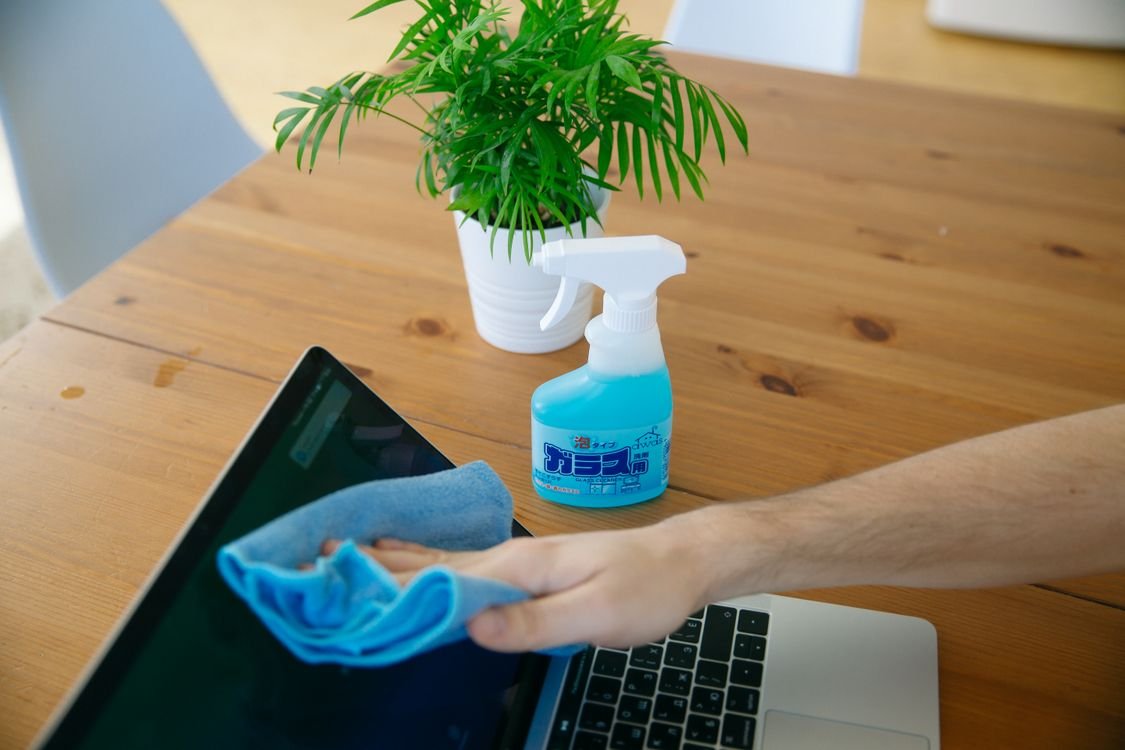
Wipe gently in small circles. Photo: Pexels.
Start with the screen, because it is the most delicate part and the easiest to damage. First, use a dry microfibre cloth to wipe away dust, using light, circular movements. Do not press hard: the screen is thin and pressing can damage the pixels underneath, especially on a touchscreen.
For fingerprints and smudges, dampen a corner of the microfibre cloth with distilled water — a small amount is enough, and the cloth should feel damp, not wet. Wipe the screen gently in small circles, then use the dry part of the cloth to remove any remaining moisture. For stubborn marks, a drop of 70 percent isopropyl alcohol on the cloth can help, but check your laptop manual first, because some screens have coatings that alcohol can damage.
Never use glass cleaner on a laptop screen. Most modern screens have an anti-reflective coating, and ammonia-based cleaners can strip it, leaving a permanent cloudy patch. If in doubt, use only distilled water, which is safe for every screen.
How to Clean Your Laptop Keyboard
Turn the laptop upside down and shake it gently to remove crumbs, then use compressed air to blow dust out from between the keys. Hold the can upright and use short bursts, keeping the nozzle a few centimetres away, because holding it too close or at an angle can spray cold liquid onto the keys.
Next, brush between the keys with a soft brush to loosen any remaining dust, and blow it out again. For the key surfaces, dampen a microfibre cloth with a small amount of isopropyl alcohol and wipe each key, or use a cotton swab for the gaps. If a key is sticky, you can carefully lift it on some models, but check your manual first: many laptop keys are held by small clips that break easily.
Do not pour or spray liquid into the keyboard, and do not use a vacuum cleaner on it. A vacuum can create static electricity that can damage the electronics, and it can also pull a key off. If your keyboard is still slow or sticky after cleaning, it may be a software problem rather than a dirt problem — read our guide to how to speed up a slow computer without buying anything, which covers software fixes as well.
How to Clean Ports, Vents, and the Case
The vents on the side or back of your laptop let hot air out, and they are often the dirtiest part. Blow short bursts of compressed air into each vent, holding the laptop at an angle so the dust falls out rather than deeper inside. Do not hold the can upside down, and stop if you see moisture.
For ports, use a dry cotton swab or a burst of air to remove dust. Do not poke a metal object into a port, because it can damage the pins inside. Wipe the touchpad with a slightly damp cloth, and clean the palm rests and lid with a microfibre cloth and a little water or alcohol. If the case has a textured finish, a soft brush helps to get dust out of the texture.
How Often Should You Clean Your Laptop?
Wipe the screen and keyboard with a dry cloth once a week, and clean them properly with a damp cloth or alcohol once a month. If you eat at your desk or you share your laptop with others, clean it more often. Clean the vents every two or three months, or more often if you have pets, because pet hair can block them quickly.
The best habit is to keep food and drinks away from your laptop and to wash your hands before you use it. A laptop cover or a keyboard skin can help, but it can also trap heat, so use one only when the laptop is closed and being carried. You can also explore the free TechInsures Tools hub for handy tools that help with everyday tech tasks.
Mistakes to Avoid When Cleaning a Laptop
The biggest mistake is using too much liquid. A laptop is full of electronics, and even a small amount of water in the wrong place can cause a short circuit. Always put liquid on the cloth, never on the laptop, and keep the cloth only slightly damp. The second mistake is using a rough cloth, such as a paper towel or a dishcloth, which can scratch the screen.
A third mistake is cleaning while the laptop is on. The screen will show your cleaning clearly, which is good, but a live keyboard can register random keys and change settings by accident. Shut the laptop down first. Finally, do not use a hairdryer to dry a laptop or blow dust out with your mouth, because both can add moisture and heat that damage the electronics.
Conclusion
Learning how to clean your laptop screen and keyboard safely is simple once you know what to use: a microfibre cloth, a little distilled water, some isopropyl alcohol, and compressed air for the hard-to-reach places. Turn the laptop off, work gently, keep liquids on the cloth, and avoid household cleaners that can damage coatings.
A clean laptop is easier to use, looks better, and lasts longer. If you clean it once a month and wipe the screen weekly, you will avoid most of the problems that dirt causes, and your laptop will thank you with years of reliable service.
Frequently Asked Questions
How to clean your laptop screen safely?
To clean your laptop screen safely, turn the laptop off, wipe dust away with a dry microfibre cloth, then wipe smudges with a cloth slightly dampened with distilled water, using light circular movements. Do not press hard and do not use glass cleaner or paper towels.
Can I use water to clean my laptop screen?
Yes, a small amount of distilled water on a microfibre cloth is safe for most screens. Tap water can leave mineral marks, so distilled water is better. The cloth should feel damp, not wet, and never spray water directly onto the screen.
How do I clean crumbs out of a laptop keyboard?
Turn the laptop upside down and shake it gently, then use short bursts of compressed air to blow crumbs out from between the keys. A soft brush helps to loosen dust. Do not use a vacuum cleaner, because it can create static and can pull keys off.
Is it safe to use alcohol to clean a laptop?
Isopropyl alcohol at 70 percent is safe for most laptop keyboards and cases, and for many screens, but it can damage some anti-reflective coatings. Check your laptop manual first. When in doubt, use distilled water on the screen and alcohol only on the keyboard.
How often should I clean my laptop?
Wipe the screen and keyboard with a dry cloth once a week, and clean them properly once a month. Clean the vents every two or three months, or more often if you have pets. Keeping food and drinks away from your laptop will help it stay cleaner for longer.