
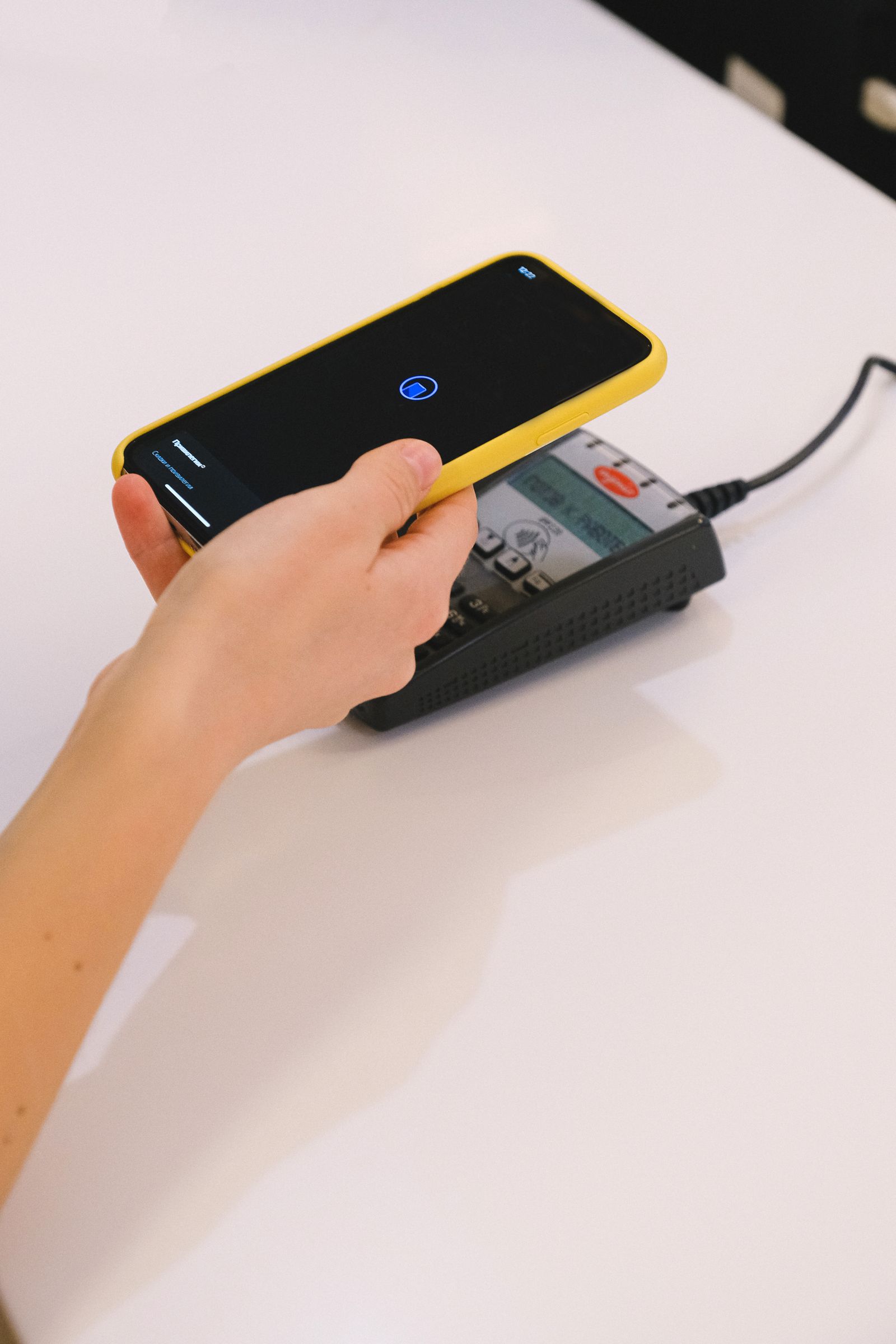
What is NFC? NFC, short for Near Field Communication, is the wireless technology that lets your phone pay for coffee, unlock a door, or share a contact simply by holding it close to another device. You have probably used it already, even if you never knew its name. Every time you tap your phone or card on a payment terminal, or hold your phone near a transit gate, NFC is doing the work in the background.
In this guide, we explain NFC in plain English. You will learn how it works, how it differs from Bluetooth and Wi-Fi, what tap to pay really does with your card details, and how to use NFC safely on Android and iPhone. By the end, you will know exactly when to tap, when to be careful, and how to fix it when a tap does not work.
What Is NFC?
NFC stands for Near Field Communication. It is a short-range wireless technology that allows two devices to exchange small amounts of data when they are very close together, usually within about 4 centimetres, or roughly 1.5 inches. That short range is not a weakness. It is the point. NFC is designed for quick, intentional interactions: a tap, a hold, or a brief touch.
The technology grew out of radio-frequency identification, or RFID, the same family of technology used in contactless ID badges and library tags. NFC added two-way communication, so a phone can both send and receive data, and it added a secure mode for payments. Most modern smartphones, many smartwatches, payment cards, transit cards, and door locks now include an NFC chip and a small antenna.
When you tap to pay, your phone does not send your real card number to the shop. Instead, it sends a one-time code, called a token, that represents your card for that single purchase. If a criminal intercepted that code, it would be useless for a second purchase. That design is one reason tap to pay has become the default way to pay in many countries.
How Does NFC Work?
NFC works through magnetic induction, a simple idea with a clever result. One device creates a small electromagnetic field. When a second device enters that field, the field powers the second device’s chip just enough for it to respond, and the two devices exchange data. No pairing, no password, and no internet connection are needed for the tap itself.
There are three main modes of NFC. In reader and writer mode, your phone reads information from a passive tag, such as a poster, a product label, or a smart business card. In peer-to-peer mode, two powered devices, such as two phones, exchange data with each other. In card emulation mode, your phone acts like a contactless card, which is how Apple Pay, Google Pay, and Samsung Pay work at a checkout.
A typical tap to pay transaction follows the same steps every time. First, you wake your phone and open your wallet app, or simply hold the phone near the terminal. Second, the phone and the terminal recognise each other and agree on a secure connection. Third, your phone sends a token and a one-time cryptogram to the terminal. Fourth, the bank checks the token and approves the payment. The whole exchange takes about a second, which is why queues move so quickly at contactless checkouts.
The range is deliberately short. You must hold the device within a few centimetres of the reader, and the connection ends as soon as you move it away. That makes accidental payments very unlikely, and it makes it hard for someone nearby to intercept the signal without you noticing.
NFC vs Bluetooth vs Wi-Fi: What Is the Difference?
People often confuse NFC with Bluetooth and Wi-Fi because all three are wireless, but they solve different problems. NFC is for instant, close-range exchanges. Bluetooth is for a lasting connection between two devices over a few metres, such as headphones and a phone. Wi-Fi is for connecting devices to a network and to the internet over a much longer range.
Think of it this way. NFC is a handshake: brief, close, and enough to start something. Bluetooth is a conversation: two devices stay connected while you listen to music or use a keyboard. Wi-Fi is a road to the internet: it carries large amounts of data over a long distance. NFC is also much faster to start than Bluetooth, because there is no pairing process. You tap, and it works.
In practice, the technologies often work together. You might tap your phone on a Bluetooth speaker to pair it instantly, using NFC to set up the Bluetooth connection. You might tap a Wi-Fi tag to join a guest network without typing a password. NFC is the shortcut; Bluetooth and Wi-Fi do the heavier work after the connection is made.
Speed is another difference. NFC transfers data slowly, at up to 424 kilobits per second, which is fine for a payment token or a web address, but far too slow for music or video. Bluetooth and Wi-Fi are far faster, which is why they handle streaming and file transfers. NFC was never meant to replace them. It was meant to make starting a connection effortless.
How Tap to Pay Works Step by Step
Tap to pay is the most common use of NFC, and it is also the one people worry about most, so it is worth understanding in detail. When you add a card to Apple Pay or Google Pay, your bank replaces your real card number with a device account number, or token, stored in a secure chip on your phone. The shop never sees your real number.
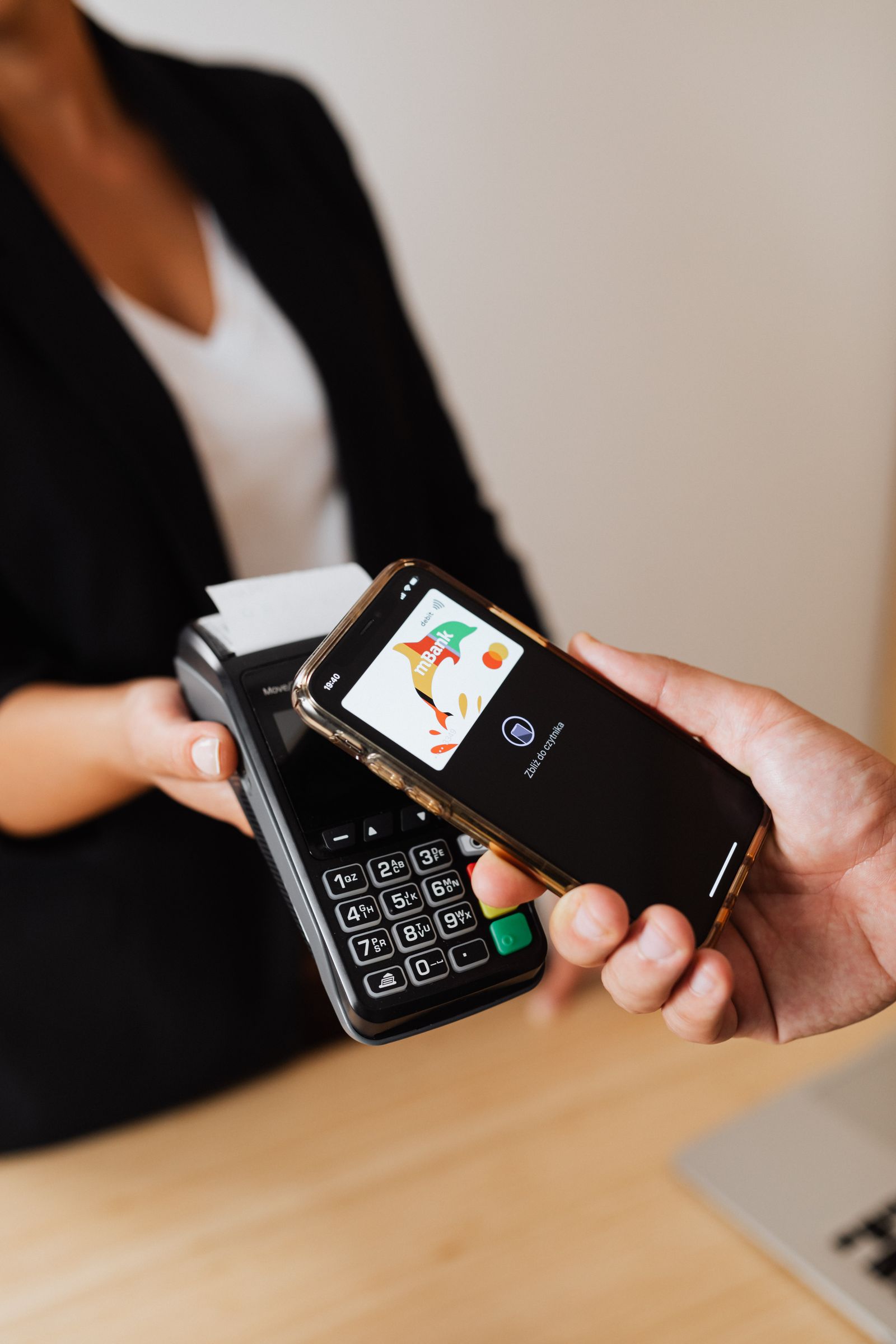
At the checkout, the terminal asks for payment. You authenticate with your fingerprint, face, or passcode, then hold the phone near the terminal. Your phone sends the token, a one-time code, and the amount. Your bank matches the token to your real account, checks the one-time code, and approves the payment. The terminal shows a tick, and you are done.
Contactless cards work in a similar way, but with one important difference: a physical card has no fingerprint check. That is why banks set a limit on contactless card payments, often around 100 dollars or pounds, and ask for a PIN after several contactless purchases. Phone payments are usually not subject to the same low limit, because the phone itself checks that it is you before it pays.
If you lose your phone, you can lock it remotely or remove its cards from your wallet account, and the tokens on the phone stop working. That is much safer than losing a wallet full of cards, because a lost phone can be locked in minutes, and a thief cannot use its stored tokens without your fingerprint or face.
Everyday Uses of NFC Beyond Payments
Payments get the attention, but NFC quietly does many other jobs. In public transport, many cities let you tap your phone or card at the gate instead of buying a paper ticket. The gate reads the token, charges the fare, and opens. It is faster than queuing for a ticket, and it means one less card to carry.
NFC is also used for pairing and sharing. Tap a phone on a compatible speaker or headphones to connect them. Tap two phones together to share a photo, a contact, or a web link, where the phone supports it. Tap a smart poster or a museum label to open a web page, a video, or an audio guide without typing a web address or scanning a code.
At home and at work, NFC appears in smart locks, hotel room keys, office badges, and loyalty cards. Some hotels now send a digital key to your phone, so you can tap the door to enter your room. Some cars let you unlock and start the car with your phone. Small NFC tags, which cost very little, can be stuck around a home to trigger actions, such as turning on Wi-Fi, setting an alarm, or opening a favourite app when you tap your phone on them.
Is NFC Safe?
Yes, NFC is generally safe for everyday use, and in some ways it is safer than older payment methods. The short range means a thief would have to be centimetres from your phone or card to read it, and the token system means the data they could capture cannot be reused for another purchase. Phone payments add a further layer, because they require your fingerprint, face, or passcode.
That said, no technology is risk-free, and a few sensible habits help. Keep your phone locked with a strong passcode or biometric lock, and keep your wallet app updated. If you carry contactless cards, consider a wallet with RFID blocking, or ask your bank for a card without contactless if you rarely use it. Check your bank statements regularly, so you spot any transaction you do not recognise.
One common fear is that someone could charge your card by brushing a terminal against your pocket. In practice, this is very difficult. The terminal would need to be within a few centimetres of the card, the card would need to be the only card in range, and the payment would be limited and traceable. Banks also monitor for unusual patterns. The realistic risk is far lower than the risk of losing cash or having a card skimmed at an ATM, which is why banks have moved so strongly towards contactless payments.
Turn NFC off when you do not need it if that gives you peace of mind, especially on a phone you rarely use for payments. On most phones, you can switch it off in Settings and switch it back on in seconds when you need to pay. That simple habit removes even the small risk of an unwanted tap.
How to Turn On NFC on Android and iPhone
On most Android phones, open Settings, then tap Connected devices or Connections, then look for NFC and turn it on. The exact wording varies by brand: Samsung calls it NFC and contactless payments, while Google Pixel lists it under Connected devices. You can also swipe down from the top of the screen and tap the NFC tile in Quick Settings, if your phone shows one.
Once NFC is on, set your default payment app. On Android, go to Settings, then Connected devices, then Connection preferences, then NFC, then Contactless payments, and choose Google Pay or your bank’s app. Add your card in the wallet app and follow your bank’s verification steps, which usually involve a text message code.
On iPhone, NFC is always on for Apple Pay and cannot be switched off separately. To set it up, open the Wallet app, tap the plus sign, and add a card by scanning it or entering the details. Then verify the card with your bank. To pay, double-click the side button, authenticate with Face ID or Touch ID, and hold the phone near the terminal. For reading NFC tags, iPhones from the iPhone 7 onwards read tags automatically when the phone is unlocked and held near them.
If a tap does not work, try removing a thick case, holding the phone still for a second longer, or moving it slowly across the terminal until you find the sweet spot. The NFC antenna sits near the top of most phones, so holding the top of the phone near the reader often works better than holding the middle.
Common NFC Problems and How to Fix Them
The most common problem is a tap that does nothing. First, check that NFC is turned on, and that your payment app is set as the default. Second, check that the terminal actually accepts contactless payments; some older terminals do not. Third, try again with the phone unlocked and the wallet app open, in case the phone was asleep.
If the terminal shows an error, the card may need verification. Open your wallet app and check for a message from your bank, such as a request to verify the card or to confirm a transaction. If the problem continues, remove the card from the wallet and add it again, or try a different card. If none of your cards work, restart the phone, because a stuck NFC service is often fixed by a restart.
Another common issue is a phone that pays with the wrong card. That usually means the wrong card is set as the default in the wallet app. Open the wallet, choose the card you want, and set it as the default. If you carry several contactless cards in the same wallet as your phone, the terminal may read the wrong one, so take the card you want to use out of the wallet before you tap.
Conclusion
NFC is a small technology with a large effect on daily life. It turns a tap into a payment, a ticket, a key, or a connection, without passwords, pairing, or waiting. Its short range, token system, and phone authentication make it a safe and practical way to pay and to connect, as long as you keep your phone locked and your wallet app up to date.
Next time you tap your phone at a checkout, you will know what is happening in that single second: a secure token, a one-time code, and a bank approval, all arranged by a chip and an antenna working a few centimetres apart. If you want to understand the wireless technology that makes all of this possible, read our guide to what 5G is and how fast it really is, and explore more explainers in our blog.
Frequently Asked Questions
What is NFC on my phone?
NFC on your phone is a short-range wireless chip that lets your phone communicate with payment terminals, transit gates, smart tags, and other NFC devices when held within a few centimetres of them. It powers tap to pay, transit taps, and quick pairing.
Is NFC the same as Bluetooth?
No. NFC works over a few centimetres and starts instantly with no pairing, while Bluetooth connects devices over several metres for a longer session, such as streaming music to headphones. NFC is often used to start a Bluetooth connection quickly.
Can someone steal money from my card using NFC?
It is very unlikely. A thief would need to get within a few centimetres of your card with a terminal, the payment would be small and traceable, and phone payments also require your fingerprint or face. Banks monitor for unusual contactless activity and refund unauthorised payments in most cases.
Do I need the internet to use NFC tap to pay?
No, the tap itself does not need an internet connection on your phone. Your phone sends a stored token to the terminal, and the terminal or the shop’s system connects to the bank to approve the payment.
Why is my NFC not working?
The most common causes are NFC being switched off, the wrong default payment app, a thick phone case, or a terminal that does not accept contactless payments. Check the settings, remove the case, hold the phone still near the reader, and restart the phone if the problem continues.