
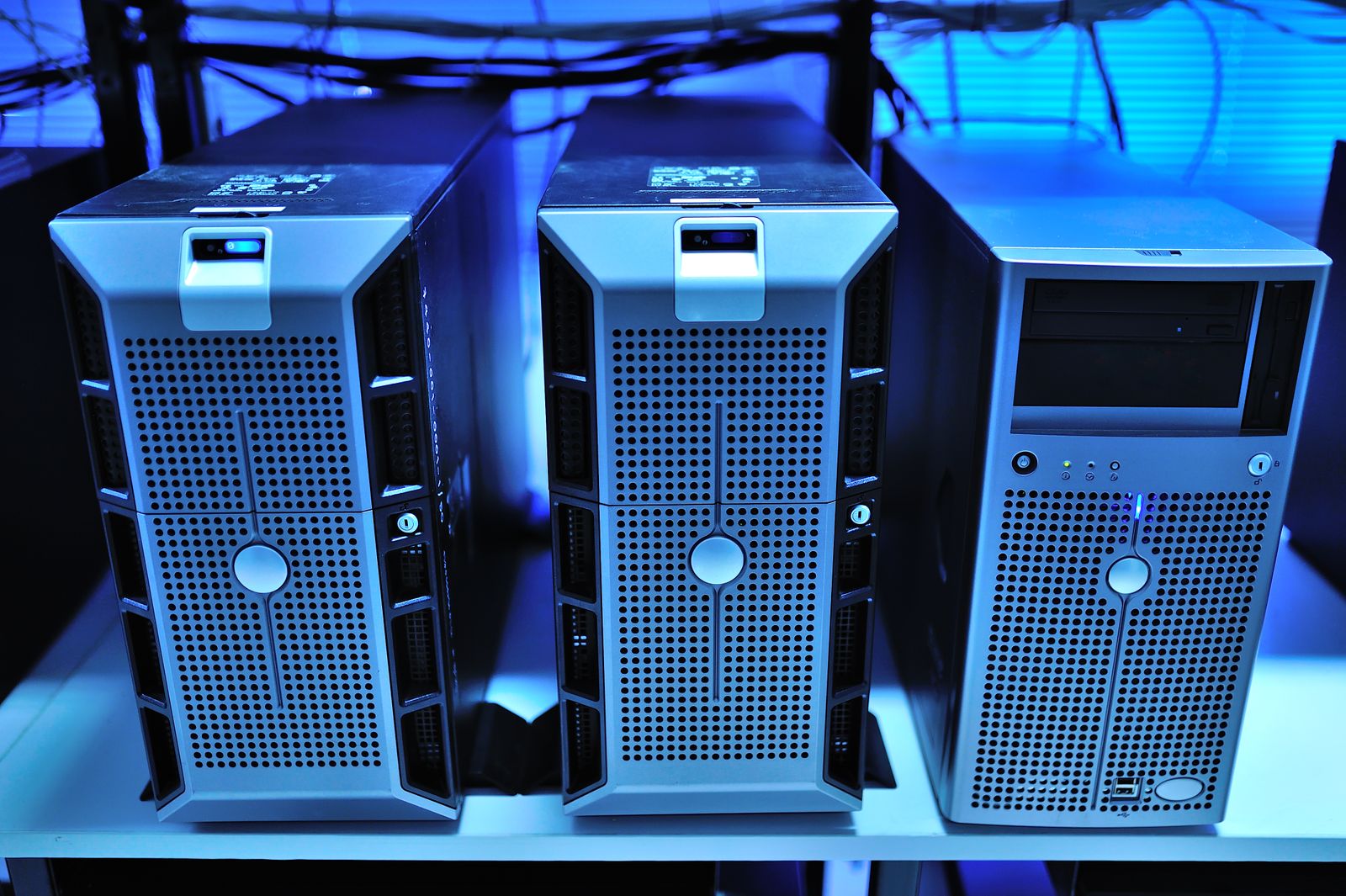
What is a NAS? NAS stands for Network Attached Storage, and it is a small box of hard drives that connects to your home network and stores your files in one central place. Every phone, laptop, and TV in your home can reach it, without paying a monthly cloud subscription. Think of it as your own private cloud, sitting on a shelf instead of in a data centre far away.
In this guide, we explain NAS in plain English: how it works, how it differs from cloud storage and from an external hard drive, what you can use it for, and whether you need one. By the end, you will know if a NAS is right for your home, and what to look for if you buy one.
What Is a NAS?
A NAS is a dedicated storage device that connects to your home network, usually by an ethernet cable to your router. It contains one or more hard drives, a small computer to manage them, and software that lets your devices access the stored files. Once it is set up, it appears on your network like a shared folder, and you can open it from a laptop, a phone, or a smart TV.
The key difference from an external hard drive is that a NAS is always on and always available to every device on the network. An external drive only works when it is plugged into one computer. A NAS works for the whole household at once: one person can watch a film from it while another backs up a laptop to it.
Most NAS devices run apps, just like a phone. You can install apps for photo backup, media streaming, file syncing, and even running a small website. That makes a NAS more than a box of drives. It is a small home server, designed to be easy enough for a non-technical person to use.
How Does a NAS Work?
A NAS stores your files on hard drives, often in a setup called RAID, which spreads data across several drives so that your files survive if one drive fails. The most common setup for a home NAS is RAID 1, which mirrors your data on two drives, or RAID 5, which spreads data across three or more drives with room for one drive to fail. RAID is not a backup on its own, because it does not protect against theft, fire, or accidental deletion, but it does protect against a single drive dying.
You access a NAS through your home network, usually over Wi-Fi or ethernet. You can also access it from outside your home, through a secure connection or an app provided by the NAS maker. That lets you reach your files from work, from holiday, or from a friend’s house, just as you would with a cloud service.
Setting up a NAS usually takes about an hour. You insert the drives, connect the box to your router, run the setup software, and create folders for photos, films, documents, and backups. After that, your devices can find the NAS automatically, and you can set up automatic backups so you never have to think about it again.
NAS vs Cloud Storage: Which Is Better?
Cloud storage, such as Google Drive or iCloud, stores your files on someone else’s servers, and you pay a monthly fee for the space you use. A NAS stores your files on drives you own, in your home, and you pay once for the hardware and the drives. After the first year or two, a NAS is often cheaper than a cloud subscription for the same amount of storage, especially if you store a lot of photos and videos.
Cloud storage is easier to start with, and it works anywhere without any setup. It also protects your files if your house floods or your NAS is stolen, because the data is in a data centre far away. A NAS gives you more control and privacy, because your files stay in your home, and you are not trusting a company with your data. It also works at the full speed of your home network, which is much faster than uploading and downloading from the internet.
Many people use both. They keep their main files on a NAS, and they back up the most important files to the cloud as well. That way, they get the speed and privacy of a NAS, and the off-site safety of the cloud. If you want to understand the cloud options first, our guide to how to back up your whole computer explains the backup side of the story, and our photo guide shows how to organise your digital photos before you move them to a NAS.
What Can You Use a NAS For?
The most common use is backup. A NAS can back up every computer in your home automatically, on a schedule you choose. If a laptop is lost or a drive fails, you can restore your files from the NAS instead of losing them. That alone is worth the price for many families.
Photos and videos are the second big use. A NAS can store your photo library, back up the photos on your phone automatically, and let you browse them from any device. Some NAS apps can recognise faces and places in your photos, just like Google Photos, but without sending your photos to a company’s servers.
Media streaming is the third use. A NAS can store your films and music and stream them to your TV, phone, or tablet, using an app such as Plex. That turns your NAS into a personal Netflix, with only the content you own. Other uses include sharing files with family, storing work documents, and running a small home office server.
Do You Need a NAS?
You probably need a NAS if you have a lot of files to store, more than a few hundred gigabytes, and you want them available to every device in your home. It is also a good choice if you want to stop paying a monthly cloud fee, if you care about privacy, or if you want automatic backups for several computers.
You probably do not need a NAS if you store very little, if you only use one device, or if you are happy with a cloud service. A single external hard drive, or a cloud subscription, is simpler and cheaper for a small amount of data. A NAS is an investment, and it only makes sense if you will use its storage and its apps regularly.
Consider a NAS if you are a photographer, a video maker, a student with a large library, or a family with several computers and phones. If your phone is always full and your laptop is always warning you about storage, a NAS can take the pressure off both.
How to Choose a NAS
Start with the number of drive bays, the slots for hard drives. A two-bay NAS is enough for most homes, because it can mirror your data on two drives. A four-bay NAS gives you more storage and more options for RAID, and it is better if you store a lot of video. Buy a NAS from a well-known maker, such as Synology or QNAP, because their software is easier to use and better supported.
Next, choose your drives. Use drives designed for NAS use, such as WD Red or Seagate IronWolf, because they are built to run all day, every day. Avoid using old desktop drives, which are not designed for constant use and are more likely to fail. Buy the largest drives you can afford, because your storage needs will grow.
Finally, check the software. A good NAS should have apps for photo backup, media streaming, and file syncing, and it should be easy to set up automatic backups from your computers and phones. Read reviews of the software, not just the hardware, because you will use the software every day.
Conclusion
A NAS is your own private cloud: a box of hard drives on your home network that stores your files, backs up your devices, and streams your media, without a monthly subscription. It costs more up front than cloud storage, but it gives you control, privacy, and speed, and it pays for itself over time if you store a lot of data.
If you have more files than your devices can hold, and you want them safe, organised, and available everywhere in your home, a NAS is worth considering. Start with a two-bay model from a trusted maker, fill it with NAS drives, and set up automatic backups on day one.
Frequently Asked Questions
What is a NAS in simple terms?
A NAS is a box of hard drives connected to your home network. It stores files in one central place, so every device in your home can access them, back up to them, and stream media from them.
Is a NAS better than cloud storage?
It depends. A NAS is cheaper over time for large amounts of data, and it keeps your files private and fast to access at home. Cloud storage is easier to set up and protects your files if something happens to your home. Many people use both.
How much does a NAS cost?
A two-bay NAS without drives usually costs 200 to 350 dollars, and each hard drive costs 80 to 150 dollars depending on size. The total cost for a basic setup is usually 400 to 600 dollars, with no monthly fee after that.
Can I access my NAS from outside my home?
Yes. Most NAS makers offer a secure app or a web address that lets you reach your files from anywhere, as long as the NAS is turned on and connected to the internet.
Does a NAS replace backups?
No. A NAS is a good place to store backups, but it is not a backup on its own. If your home floods or the NAS is stolen, you lose the NAS and its data. Keep a copy of your most important files in the cloud or on a drive stored elsewhere.
Pingback: What Is Big Data? An Easy Guide for Beginners (2026)