
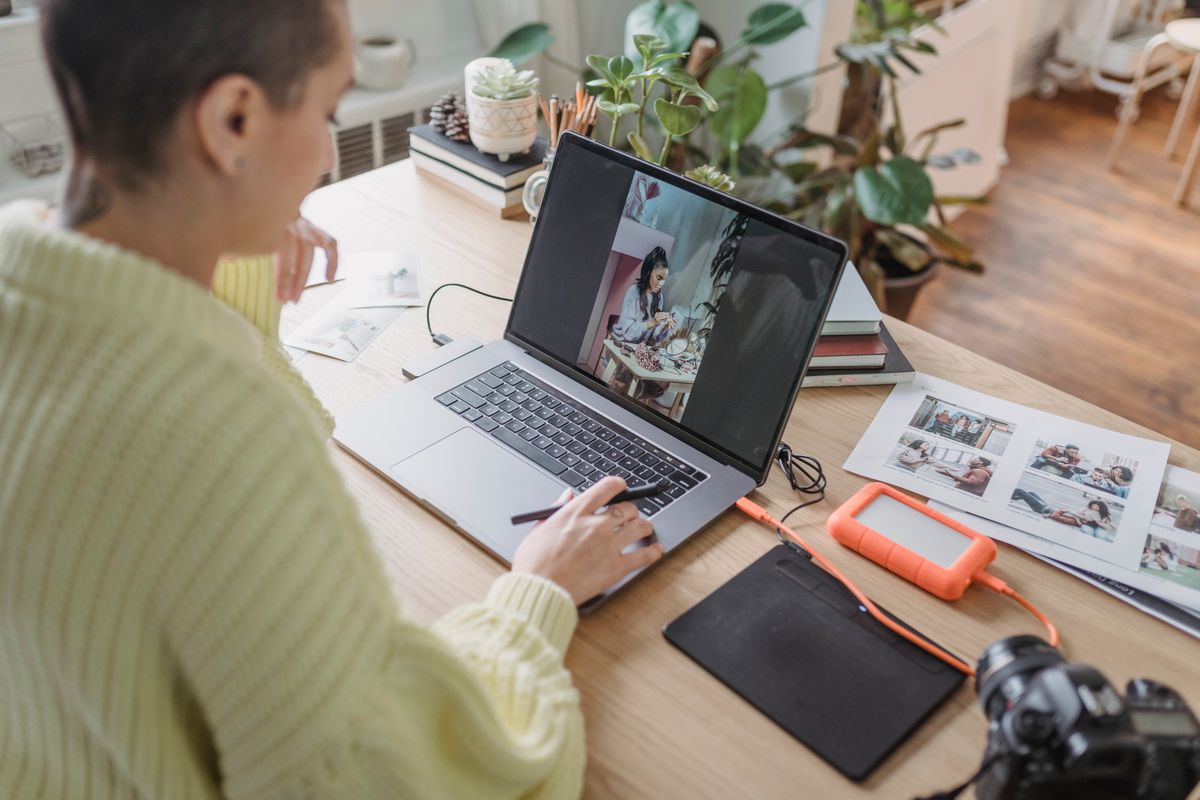
The best free photo editing software in 2026 is better than many paid programs were just a few years ago. Whether you want to brighten a holiday photo, remove an unwanted object, design a social media post or prepare images for a website, there is a free tool that can do it well. The challenge is not finding a free editor. It is choosing the right one for your device, your skill level and the kind of editing you actually do. Some free editors are powerful desktop programs with layers and masks. Others are simple browser tools that open instantly and handle quick fixes. Some are excellent on a phone but limited on a computer. This guide compares the strongest free options, explains what free really means, and helps you pick a tool you will enjoy using rather than one you will abandon after a week.
Before comparing names, it helps to understand the trade-offs behind the word free. Some programs are completely free and open source, built by communities and funded by donations. They usually have no ads, no watermarks and no locked features, but they may look less polished and take longer to learn. Other programs use a freemium model: the basic version is free, while advanced features, extra storage or high-resolution exports require payment. Those can be excellent if the free tier covers your needs, but check carefully what is actually included. A third group is free in a browser but funded by advertising or by a paid upgrade path. None of these models is automatically bad, but you should know which one you are using. Check export limits, watermark rules, file ownership and whether the tool uploads your photos to a server or edits them on your device.
What to Look For in a Free Photo Editor
Start with the basics that matter for almost everyone. A good editor should let you crop, straighten, adjust brightness, contrast, colour and sharpness, and undo mistakes easily. It should handle common formats such as JPEG and PNG, and ideally also work with RAW files if you shoot with a camera rather than a phone. Layers are the next step up. Layers let you edit one part of an image without changing the rest, add text, combine pictures and adjust selectively. Masks, selection tools and healing tools let you remove spots, objects and distractions. If you plan to design graphics, look for text tools, shapes, templates and easy export sizes for social media. If you plan to print photos, look for high-resolution export, colour controls and support for the right file formats.
Ease of use matters as much as power. A professional tool with hundreds of buttons can be frustrating if you only want to fix lighting and colour. A simple tool that you understand will produce better results than a powerful tool you avoid. Also consider your device. Some editors run in a browser on any computer, some need installing on Windows or Mac, and some work best on a phone or tablet. Check system requirements and storage, especially if your computer is older. Finally, think about privacy. If you edit sensitive photos, a desktop program that works offline keeps your files on your device. A browser or cloud tool may be convenient, but read its privacy policy and avoid uploading private images to a service you do not trust. For accounts you create on any editing platform, use a unique password, and the free TechInsures Tools hub can help you review everyday security tools.
GIMP: The Powerful Free Desktop Editor
GIMP, short for GNU Image Manipulation Program, is the best-known completely free desktop photo editor, and it remains a strong choice in 2026 for users who want professional-level control without paying. It runs on Windows, Mac and Linux, supports layers, masks, selections, curves, levels, filters and a huge range of plug-ins, and it can open many file formats including PSD and RAW files with the right plug-ins. For retouching, compositing, graphic design and detailed editing, GIMP can do almost everything a paid editor can do. Its main drawback is the learning curve. The interface is dense, some tools work differently from commercial editors, and beginners may need tutorials to feel confident. That said, there are many free guides and videos, and once you learn the basics of layers and selections, GIMP becomes fast and flexible.
GIMP is best for people who edit on a desktop, want full control, and do not mind investing a little time in learning. It is especially good if you work offline, need high-resolution exports, or want to avoid subscriptions and watermarks. It is less ideal if you only want one-tap filters on a phone, or if you need the exact workflow of a specific commercial program for work. Try it with a simple project first: open a photo, adjust exposure and colour with levels or curves, try a selection and a layer, and export a copy. If that feels manageable, GIMP may be the only editor you need. Keep your original photos backed up before editing, and work on a copy so you can always return to the untouched version.
Photopea: The Browser Editor That Feels Like a Pro Tool
Photopea is a free editor that runs entirely in a web browser, and it is one of the most impressive free tools available in 2026. It opens PSD, XCF, RAW and many other formats, supports layers, masks, smart objects, blending modes and a familiar professional layout, and it requires no installation. That makes it ideal for school or work computers where you cannot install software, for quick edits on a borrowed machine, or for trying advanced editing without committing to a download. Because it runs in the browser, it works on Windows, Mac, Linux and even Chromebooks, as long as you have a reasonably modern browser and an internet connection.
The trade-off is advertising in the free version and the need for an internet connection, although your files are processed in your browser rather than uploaded to a server in most cases. Photopea can feel slower than a desktop program on very large files or older machines, and it does not offer the same mobile experience as a dedicated phone app. Still, for many users it is the best balance of power and convenience. If you already know a commercial editor, Photopea will feel familiar. If you are learning, its layer-based approach teaches skills that transfer to other programs. Start with a photo, practise cropping, adjusting colour, adding text on a new layer, and exporting for web and print, and you will quickly see whether a browser workflow suits you.

Simple and Fast Options for Everyday Edits
Not every photo needs layers and masks. For everyday fixes, simpler tools are often better. Paint.NET is a free Windows editor that is lighter and easier than GIMP, with layers, a clean interface and a large community of plug-ins. It is an excellent step up from basic built-in editors, especially for cropping, resizing, colour correction and simple graphics. On Mac, the built-in Photos app already handles cropping, lighting, colour and filters surprisingly well, and it keeps your library organised. On Windows, the Photos app also covers basic adjustments. For browser-based design, Canva’s free tier offers templates, text, shapes and social media sizes, making it ideal for posters, invitations and online posts, although its photo editing is less detailed than GIMP or Photopea and some premium elements require payment.
On phones, Snapseed remains a favourite free editor because it offers precise control over brightness, colour, selective adjustments and healing, without a subscription or watermark. Lightroom’s mobile app also has a strong free tier for basic editing and presets, with paid features for cloud storage and advanced tools. Google Photos and Apple Photos include useful automatic enhancements and simple sliders for quick sharing. The best mobile editor is usually the one already on your phone combined with one dedicated app for more control. Avoid installing many similar editors, because they clutter your phone and may request unnecessary permissions. Choose one or two, learn them well, and delete the rest.
Specialist Free Tools Worth Knowing
Beyond general editors, several specialist free tools solve specific problems well. For RAW photography, RawTherapee and Darktable are powerful open-source programs that let you develop RAW files with detailed control over exposure, colour, noise and lens corrections. They take time to learn, but they are excellent for photographers who shoot in RAW and want maximum quality. For batch editing, tools such as XnConvert or IrfanView on Windows can resize, rename and convert many images at once, which is useful for websites and large photo collections. For removing backgrounds, several free browser tools now do a good job automatically, although results vary with complex hair or transparent objects, and you should check the privacy policy before uploading private photos.
For design and illustration, Krita is a free, open-source program focused on digital painting and illustration, with strong brush tools and layer support. Inkscape is a free vector editor for logos, icons and scalable graphics, which is different from photo editing but useful if you create graphics alongside photos. These specialist tools show why there is no single best free editor. The right choice depends on whether you are fixing photos, designing graphics, painting, or preparing images for print or web. Start with your main task, choose a tool built for it, and add a second tool only when you hit a clear limit.
How to Choose the Right One for You
Use a simple decision process. First, list the three things you edit most often. If they are quick phone photos for social media, a mobile editor or a simple browser tool is enough. If they are detailed desktop edits, choose GIMP or Photopea. If you shoot RAW, add Darktable or RawTherapee. Second, try two candidates for one real project each, not just a test image. Edit a photo you actually want to share, export it, and see how the result looks on another screen. Third, check the free limits that matter to you: export resolution, watermarks, file formats, offline use and storage. Fourth, consider learning resources. A tool with good tutorials, an active community and regular updates will serve you longer than a flashy tool that is rarely updated. Finally, think about your workflow. Do you want your edits saved in the cloud, on your computer, or both? Do you need to work on more than one device? The answers will narrow the choice quickly.
Be cautious about free tools that ask for excessive permissions, display intrusive ads, or require an account for basic editing. Read reviews from reputable sources, download desktop software only from the official website, and avoid cracked versions of paid software, which often contain malware. Keep your editor updated, because updates fix security issues and add support for new cameras and formats. When you create an account for a cloud editor, protect it with a strong, unique password, and the Strong Password Generator can help you make one. Good security habits matter even for creative tools, because your photo library is personal.
A Simple Editing Workflow That Works
Good editing is mostly about restraint. Start by making a copy of the original, then crop and straighten to improve composition. Next, fix exposure and white balance before colour, because a well-exposed photo needs less colour work. Adjust contrast gently, add a little sharpness at the end, and check the result at full size and at sharing size, because edits that look good zoomed in can look harsh when small. Avoid over-saturating colours, over-sharpening, or applying heavy filters that hide detail. For portraits, retouch lightly: remove temporary blemishes if you wish, but keep skin texture natural. For landscapes, preserve the mood of the light rather than turning every sky into an unrealistic colour. Step away for a few minutes, then look again with fresh eyes before exporting.
Exporting matters too. For social media, export a JPEG at the platform’s recommended size and check the file size, because very large files may be compressed by the platform anyway. For printing, export at high resolution without heavy compression, and use a colour profile if your editor supports it. For archiving, keep both the original and the edited version, and consider saving an editable project file if your editor supports layers, so you can change the edit later. Name files clearly, such as holiday-beach-edited.jpg, rather than leaving a string of numbers. A tidy workflow saves time and prevents the common problem of losing the original after an edit you later regret.
Conclusion
The best free photo editing software in 2026 depends on your needs, but the strongest all-round choices are clear. GIMP is best for powerful, offline desktop editing with no subscription. Photopea is best for advanced editing in a browser without installation. Paint.NET, built-in Photos apps and Snapseed are best for fast, everyday fixes, while Darktable and RawTherapee serve RAW photographers, and Canva serves design-led projects. Start with your main task, try one or two tools on a real photo, check export limits and privacy, and learn the basics of cropping, exposure, colour and layers before chasing advanced effects. Free does not mean low quality, and with a calm workflow and a little practice, you can produce polished photos without paying for software. Pick a tool, edit one photo well, and build from there.
Pingback: Best Free Video Editing Software: Amazing Picks for 2026