
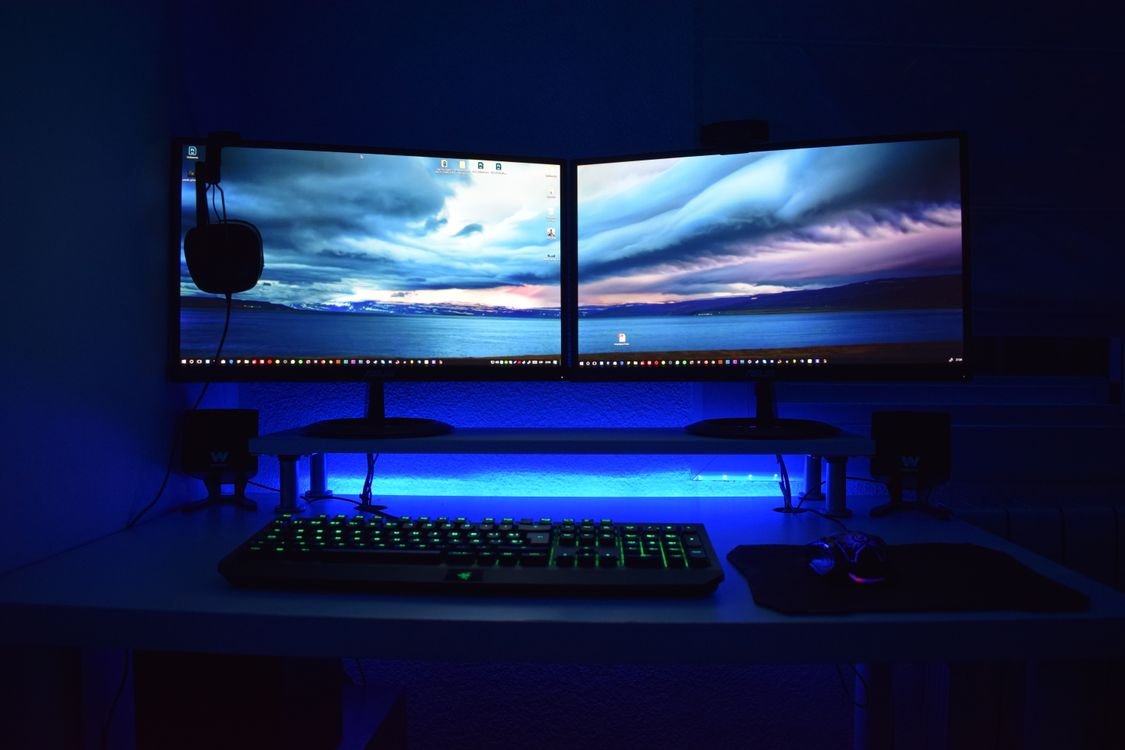
A second monitor gives you room to work. Photo: Pexels.
If you have ever tried to write a report while switching between a spreadsheet, a browser, and your notes, you know how much time you lose moving between windows. Learning how to set up a second monitor for your laptop can change that. A second screen gives you space to keep your main work in front of you and your reference material beside it, so you stop switching back and forth.
Setting up a second monitor sounds technical, but it is usually a matter of plugging in one cable and choosing a setting. In this guide, we explain what you need, how to connect a monitor to your laptop, how to arrange the screens on Windows and Mac, and how to fix the most common problems.
Why a Second Monitor Helps
A second monitor helps most with work that involves more than one thing at once. Writing a document while looking at research, comparing two spreadsheets, editing a video with a timeline, or watching a video call while taking notes are all easier with two screens. Studies of office workers have found that a second monitor can make people noticeably faster at these kinds of tasks, because they spend less time switching between windows and less time trying to remember what was on the other screen.
A second monitor can also help your posture and your eyes. With a laptop alone, you often look down at a small screen, which can strain your neck and shoulders. A monitor at eye level lets you sit up straight, and a larger screen with bigger text is easier on your eyes. If you work from home, it is one of the best upgrades you can make for the money.
It is not only for work. A second monitor is useful for studying, for following a recipe while you cook, for watching a film while you chat with a friend, and for playing games with a guide open on the other screen. If you use your laptop for more than one thing at a time, you will notice the difference in the first day.
What You Need to Set Up a Second Monitor
You need three things: a monitor, a cable, and a laptop with a port to connect them. The monitor can be almost any modern screen with an HDMI, DisplayPort, or USB-C input. You do not need the newest or most expensive monitor: a basic 24-inch Full HD monitor is enough for most people, and it costs far less than a premium model.
The cable is the part people most often get wrong. The cable must match the ports on your laptop and on the monitor. The most common connection is HDMI, which is a flat, wide port found on most laptops and monitors. Newer laptops often have USB-C instead, and you can connect those to a monitor with a USB-C cable or a USB-C to HDMI adapter. Older laptops may have DisplayPort or Mini DisplayPort. Check the ports on both ends before you buy a cable.
You may also want a stand or a monitor arm to lift the second monitor to eye level, an external keyboard and mouse so you can sit further back, and a desk with enough space for both screens. A second monitor does not need a second computer: your laptop powers both screens.
Check Your Laptop’s Ports First
Before you buy anything, look at the sides of your laptop and write down which ports you have. Most Windows laptops have at least one HDMI port. Many newer laptops have USB-C, and some of those USB-C ports can carry a video signal, which is called DisplayPort Alternate Mode, while others cannot. Your laptop manual or the maker’s website will tell you whether your USB-C port supports video.
If your laptop has no video port, you can use a USB docking station or a USB to HDMI adapter, which adds a video port. These work well for office apps and web browsing, but they are not usually fast enough for video editing or gaming. If you have a MacBook with USB-C only, a USB-C to HDMI adapter or a docking station is the usual solution.
Also check how many monitors your laptop can support. Most modern laptops can run one external monitor, and many can run two. The laptop’s graphics chip sets the limit, and the manual will tell you what is possible. For a guide to the other hardware you might need, read our guide to how to choose a keyboard for typing all day, because a good keyboard makes a two-screen setup much more comfortable.
How to Connect the Monitor: Step by Step
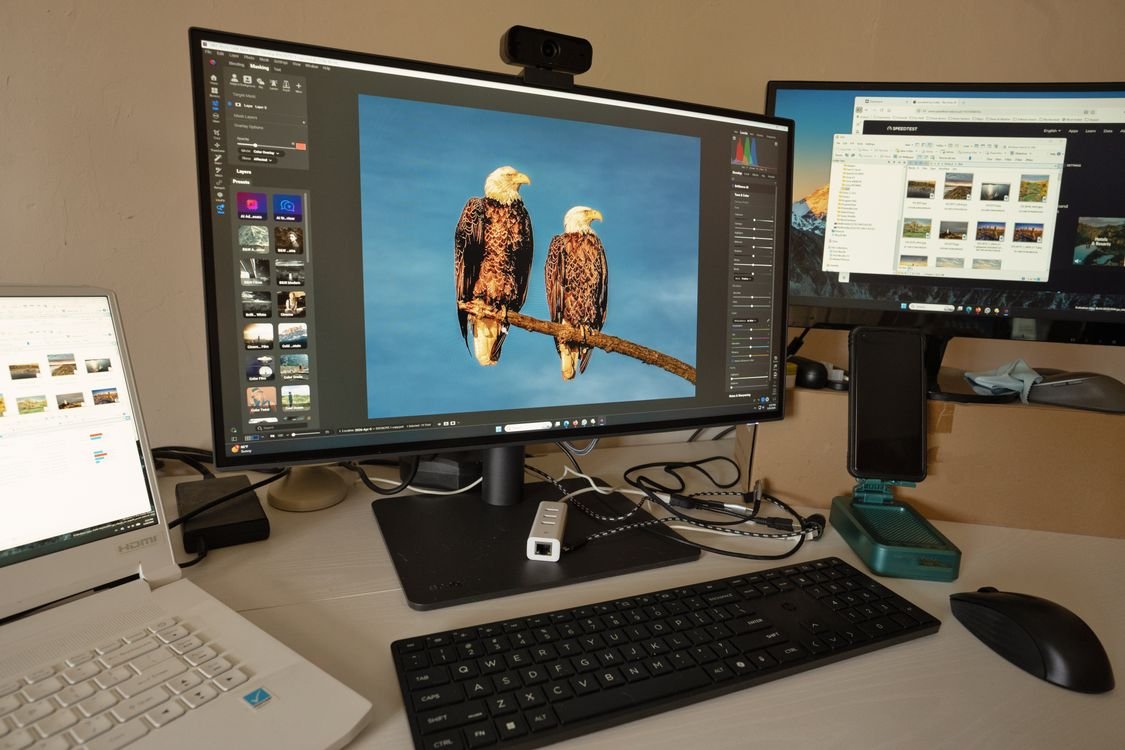
One extra screen makes editing and multitasking easier. Photo: Pexels.
Start with both devices switched off, then plug the cable into the monitor and into your laptop. Turn on the monitor first, then the laptop. In most cases, the laptop will detect the monitor automatically and show your desktop on both screens. If nothing appears, press the input or Source button on the monitor until it shows the right input, such as HDMI 1 or DisplayPort.
If the monitor still shows nothing, check the cable is fully plugged in at both ends, and try a different port on the monitor. On Windows, press the Windows key and P to open the display menu and choose Extend. On a Mac, open System Settings, go to Displays, and look for the second monitor. If it is not there, hold the Option key and click Detect Displays.
Once the monitor is detected, it will usually mirror the laptop screen at first, which means both screens show the same thing. That is useful for presentations, but for work you will usually want Extend, which turns the two screens into one large desktop so you can drag windows between them.
Setting Up Your Displays on Windows
On Windows, open Settings, go to System, then Display. You will see two rectangles representing your screens. The one marked 1 is usually the laptop screen, and the one marked 2 is the monitor. Click on each one to set its resolution and scale. For most people, the recommended resolution is the best choice, because it matches the monitor’s physical pixels.
Drag the rectangles so they match the physical arrangement on your desk: if the monitor is on the right, put its rectangle on the right. That way, when you move your mouse off the right edge of your laptop screen, it appears on the monitor. Choose which screen is your main display by selecting it and ticking “Make this my main display”. The main display is where new apps open and where the taskbar appears.
If the text on one screen looks too small or too big, change the Scale setting for that screen. A value of 100 percent is normal for a large monitor, while a laptop screen often uses 125 or 150 percent. Setting each screen correctly makes moving between them feel natural.
Setting Up Your Displays on a Mac
On a Mac, open System Settings, then Displays. You will see a window for each screen. Arrange the screens by dragging their images to match their physical positions, and choose which is the main display by dragging the menu bar to the screen you want. macOS also lets you set the resolution and refresh rate for each display.
If you have a MacBook with Apple silicon, check how many external monitors it supports. Most M-series MacBooks support one external monitor, while the Pro and Max models support two or more. If your Mac only supports one, a docking station with DisplayLink software can add a second, although the picture may not be as smooth.
How to Arrange Your Monitors for Comfort
Position matters. The top of each screen should be at or just below eye level, about an arm’s length away. If the monitor is too low, you will look down and strain your neck. If it is too high, your shoulders will tense. A stand or a monitor arm makes it easy to get the height right, and it also frees desk space.
Put the screen you use most directly in front of you, and the second screen to the side. If you use both equally, place them side by side in the middle of your desk. Keep both screens at a similar height so your eyes do not have to move up and down as well as side to side. Good lighting helps too: avoid placing a monitor where the sun shines directly onto it, because glare makes it hard to see.
Common Problems and How to Fix Them
If the monitor shows no signal, check the cable and the monitor’s input setting, then restart the laptop with the monitor already on. If the picture is the wrong size or looks blurry, set the monitor to its recommended resolution in the display settings. If the mouse moves in the wrong direction between screens, the rectangles in the display settings do not match the physical arrangement — drag them into the right order.
If the second monitor flickers, try a different cable, because a damaged cable is the most common cause. If only one monitor works, your laptop may support just one external display, or the port you used may not carry video. If everything is slow after you add a monitor, your graphics chip may be struggling with two high-resolution screens; lowering the resolution of one screen can help. You can also explore the free TechInsures Tools hub for handy tools that help with everyday tech tasks.
How Much Does a Second Monitor Cost?
A basic 24-inch Full HD monitor costs around 100 to 150 dollars, and it is enough for office work, studying, and web browsing. A 27-inch monitor with a higher resolution costs around 200 to 300 dollars and shows more detail, which is better for design and spreadsheets. Ultrawide monitors, which are as wide as two screens, cost more but replace two monitors with one wide screen and no gap in the middle.
You will also need a cable or adapter, which usually costs 10 to 20 dollars, and a stand if your desk is low. Some people find an ultrawide monitor simpler than two separate screens, but two screens are more flexible, because you can use one in portrait mode for reading long documents.
Conclusion
Learning how to set up a second monitor for your laptop is a simple upgrade with a big payoff. You need a monitor, the right cable, and a few minutes in your display settings. Check your laptop’s ports, plug the monitor in, choose Extend instead of Mirror, and arrange the screens to match your desk.
Once you get used to two screens, it is hard to go back. You will write, research, and work faster, with less window switching and less eye strain. For the price of a basic monitor and a cable, it is one of the best improvements you can make to your workspace.
Frequently Asked Questions
How to set up a second monitor for my laptop?
To set up a second monitor for your laptop, check which ports your laptop has, connect the monitor with the right cable, turn the monitor on, then open your display settings and choose Extend so the two screens act as one large desktop. Arrange the screens to match their physical positions on your desk.
Do I need a special cable for a second monitor?
You need a cable that matches the ports on your laptop and monitor, usually HDMI or USB-C. If your laptop has USB-C and your monitor has HDMI, a USB-C to HDMI adapter will work. Always check that the USB-C port on a laptop supports video before you buy an adapter.
Can any laptop support a second monitor?
Most modern laptops can support at least one external monitor. Some can support two. The limit depends on the laptop’s graphics chip, so check the manual or the maker’s website. If your laptop has no video port, a USB docking station or a USB to HDMI adapter can add one.
Why is my second monitor not detected?
The most common reasons are a loose cable, the wrong input selected on the monitor, or a port that does not carry video. Check the cable, use the monitor’s Source button to choose the right input, and try a different port. On Windows, press Windows key and P and choose Extend.
Is a second monitor worth it?
Yes, for most people who work with more than one window at a time. A second monitor makes it easier to research, write, compare data, and take notes, and it can improve your posture by letting you work on a screen at eye level. A basic monitor is one of the cheapest upgrades you can make.