
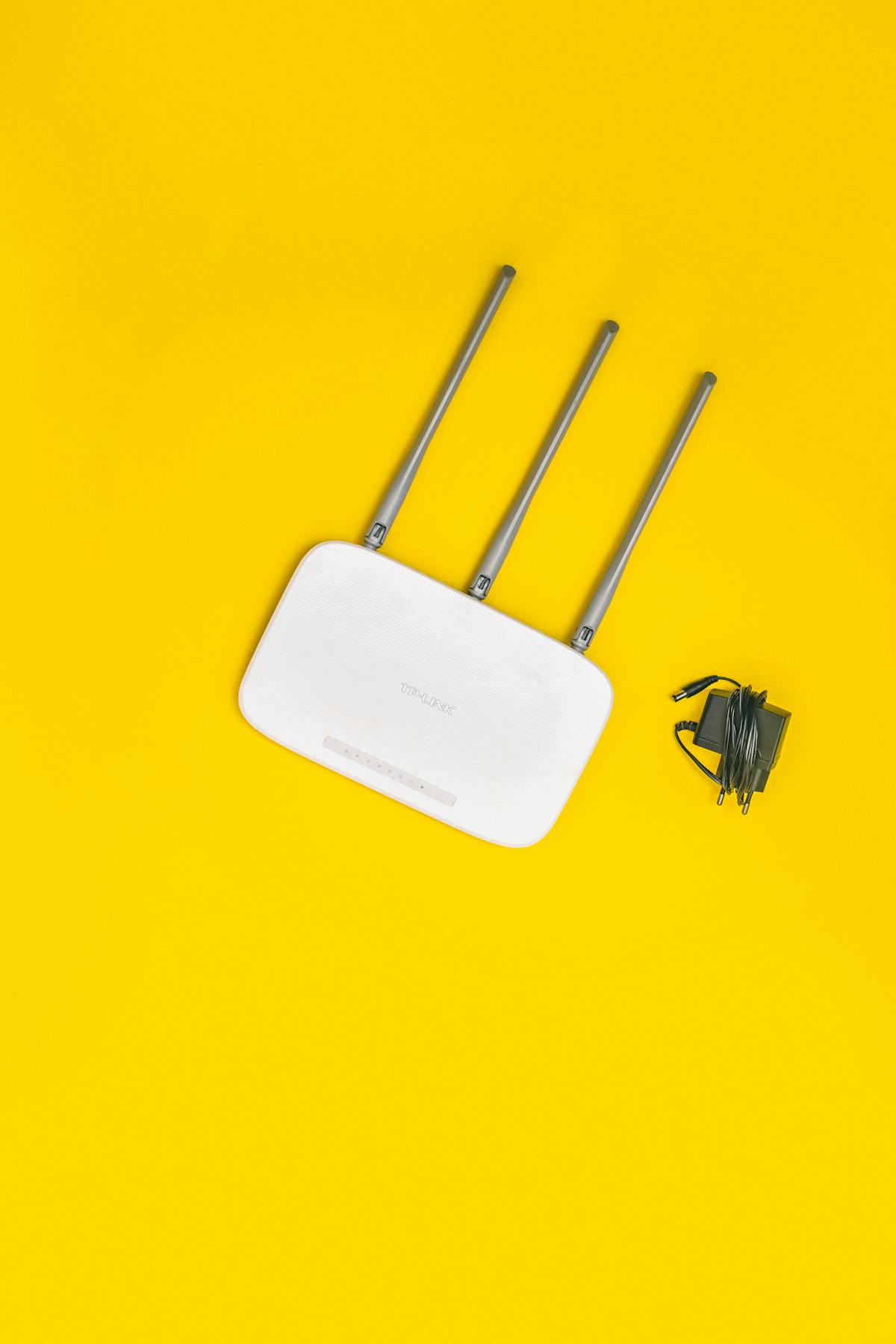
Learning how to choose the right Wi-Fi router for your home can save you money, frustration and years of slow internet. A router is the device that shares your internet connection with your phones, laptops, televisions and smart home gadgets, usually over Wi-Fi and sometimes over cables. If your video calls freeze, your streams buffer, or your connection drops in certain rooms, the router is often part of the problem, although it is not always the only cause. This guide explains what matters when buying a router, what specifications actually mean, when a mesh system makes sense, and how to set up and secure your new router so it performs well from day one.
Start by understanding what a router does and what it does not do. Your internet provider supplies a connection to your home, usually through a modem or a combined modem-router unit. A separate router takes that connection and distributes it, creating your home Wi-Fi network and managing traffic between devices. A new router cannot make your internet plan faster than the speed you pay for. If your plan is 50 megabits per second, a router that claims 3000 megabits per second will not give you 3000 megabits from the internet. What a good router can do is deliver more of your plan’s speed reliably, to more devices, in more rooms, with less buffering and fewer dropouts. That distinction is the key to buying wisely and avoiding overpaying for speed you cannot use.
Start With Your Home, Your Plan and Your Devices
Before comparing models, answer three questions. First, what internet speed do you pay for? Check your plan or run a speed test with a wired connection if you can. If your plan is under 100 megabits per second, almost any modern router will handle it. If it is 500 megabits or 1 gigabit, you need a router with gigabit Ethernet ports and strong Wi-Fi to avoid bottlenecks. Second, how large is your home and what is it made of? A small flat may be covered by a single router, while a large house, a house with thick walls, or a home with several floors may need a mesh system or additional access points. Third, how many devices connect, and what do they do? A household with two phones and a laptop has different needs from a household with four people streaming, gaming, working from home and running dozens of smart devices at once.
Also consider how you use the internet. Video calls and online gaming are sensitive to latency, which is delay, and to stability, not just raw speed. Streaming in 4K needs consistent bandwidth, especially if several people stream at once. Smart home devices usually need only a little bandwidth, but they need a stable connection and good coverage in every room, including garages and gardens where a single router may struggle. Write down your answers before shopping. They will help you ignore marketing claims that do not apply to you, such as extreme speeds for a small home with a modest plan, and focus on coverage, reliability and features you will actually use.
Wi-Fi Standards, Bands and Speed Claims Explained
Wi-Fi standards are named Wi-Fi 5, Wi-Fi 6, Wi-Fi 6E and Wi-Fi 7, corresponding to technical names 802.11ac, ax and be. Newer standards are generally faster and better at handling many devices at once, but they only help if your devices also support them. In 2026, Wi-Fi 6 is a sensible minimum for a new router, because most modern phones and laptops support it. Wi-Fi 6E adds a 6 GHz band for less congestion, and Wi-Fi 7 adds further improvements, but both are worth paying for only if you have compatible devices and a fast plan, or if you want a router that will last many years. Do not buy a Wi-Fi 7 router simply because the number is higher. Check device support first.
Routers also advertise bands and combined speeds, such as dual-band or tri-band, and numbers like AX3000. Dual-band means the router offers 2.4 GHz and 5 GHz bands. The 2.4 GHz band travels further and through walls better, but is slower and more crowded. The 5 GHz band is faster but has shorter range. Tri-band adds a second 5 GHz or a 6 GHz band, which helps in busy households by spreading devices across more channels. Combined speed numbers add the maximum speeds of all bands together, which no single device can achieve at once, so treat them as a rough comparison, not a promise. Look instead at real-world reviews, the number of streams, processor power, and whether the router has gigabit or multi-gigabit ports for wired connections.
Single Router, Mesh System or Extender?
For a small to medium home with a central router location, a single good router is often enough and is simpler to manage. Place it centrally, elevated, and away from thick walls, metal objects and other electronics, and you may get good coverage everywhere. For larger homes, or homes where a single router leaves dead zones, a mesh system is usually better than a traditional extender. A mesh system uses several units that work together as one network, so your devices move between them smoothly with one network name and password. Extenders, by contrast, often create a separate network name, halve the speed, and require manual switching, although they are cheaper and can help for a single weak room.
Mesh systems also help if your router must sit in a corner because that is where the internet enters the home. You can place mesh units in hallways or central rooms to spread coverage evenly. When comparing mesh systems, check whether units connect to each other wirelessly or by cable, because a wired backhaul, where units are connected by Ethernet, gives much better performance if you can run cables. Also check how many units are included, whether you can add more later, and whether the system supports your internet speed. A mesh system with three units is not automatically better than a single powerful router for a small home. Choose based on coverage, not on the number of boxes in the package.
Ports, Features and What Is Worth Paying For
Check the physical ports before buying. At least one gigabit WAN port, for the internet connection, and several gigabit LAN ports, for wired devices, are important. Wired connections are faster and more stable than Wi-Fi, so use them for desktop computers, game consoles, televisions and work computers where possible. A USB port can be useful for sharing a drive or a printer, but it is not essential for most people. If your internet plan is faster than 1 gigabit, look for a 2.5 gigabit or 10 gigabit port, otherwise that port will limit your speed. Also check whether the router supports the connection type your provider uses, such as fibre, cable or DSL, or whether you will keep your provider’s modem and connect the new router to it.
Useful software features include parental controls, guest networks, quality of service, and automatic updates. Parental controls let you set schedules and filter content for children’s devices, although they are not a substitute for supervision. A guest network lets visitors use the internet without accessing your private devices and files. Quality of service, or QoS, lets you prioritise video calls or gaming over less urgent traffic. Automatic firmware updates are important for security, because they patch vulnerabilities without you remembering to check. Features you may not need include gaming-specific marketing, built-in antivirus subscriptions, or cloud services that require ongoing fees. Focus on coverage, speed, ports, security updates and ease of use, and be sceptical of features that sound impressive but add little to everyday performance.
Security: Set Up Your New Router Properly
Security setup takes only a few minutes and makes a big difference. First, change the router’s administrator password from the default, because default passwords are widely known. Use a strong, unique password, and the TechInsures Tools hub includes tools that can help with everyday security, including password generation. Second, change your Wi-Fi network name and password, and use WPA3 encryption if your router and devices support it, otherwise WPA2. Do not use an open network or an old, weak encryption type. Third, turn on automatic firmware updates, or check for updates regularly. Fourth, disable remote management unless you specifically need it, and disable features you do not use, such as WPS if you do not need it for easy setup, because it can be a security weakness.
Also set up a guest network for visitors and for smart home devices if your router supports it, so that a compromised smart device cannot easily reach your computers and phones. Keep a note of your new passwords in a password manager, not on a sticky note on the router. If you use your provider’s combined modem-router, check whether you can put it in bridge or modem mode and use your new router for Wi-Fi, or whether you need to disable its Wi-Fi to avoid interference. After setup, test your connection in each room, run a speed test, and check that all devices connect. If a device will not connect, it may need a software update to support newer Wi-Fi security, or it may need to use the 2.4 GHz band for better range.
Placement and Troubleshooting Common Problems
Placement is often more important than the router model. Put the router in a central location, at about waist to chest height, in the open, not inside a cupboard, behind a television, or on the floor. Keep it away from thick concrete walls, metal filing cabinets, aquariums and microwave ovens, which can block or interfere with signals. If you have a mesh system, place units no more than two rooms apart, with a clear path between them, and avoid placing them at the far edges of the house where they have a weak signal to the main unit. After moving a router, test again, because a move of even a metre can change coverage in a distant room.
If you still have problems, troubleshoot systematically. First, test with a wired connection to see whether the issue is Wi-Fi or your internet plan. If wired is fast but Wi-Fi is slow, the problem is coverage or interference. Try changing Wi-Fi channels, separating the 2.4 GHz and 5 GHz network names temporarily to see which works better for a device, or moving the router. If both wired and wireless are slow, contact your provider and check for outages, a faulty modem, or a plan limit. Restarting the router occasionally can help, but if you need to restart daily, something is wrong, such as overheating, old firmware, or a failing device. Also check for neighbours’ networks causing congestion, especially on 2.4 GHz, and consider using 5 GHz or 6 GHz where possible for less crowded channels.
When to Upgrade and How Much to Spend
Upgrade when your current router cannot deliver your plan’s speed, leaves dead zones that a better placement cannot fix, drops connections frequently, no longer receives security updates, or cannot handle the number of devices in your home. Do not upgrade solely because a new standard exists, if your current router works well and is still supported. For most homes, a good Wi-Fi 6 router or a basic mesh system in the mid-price range is sufficient. Spending more makes sense if you have a gigabit plan, a large home, many devices, or you want a router that will last five years or more. Spending the most does not guarantee the best experience if placement, plan speed or device support is the real limit.
Before buying, read independent reviews that test real-world speed and coverage, not just specifications. Check return policies, because Wi-Fi performance depends on your home, and a router that works well in a test lab may perform differently in your house. Keep the box and receipt until you have tested it in every room for a few days. If you rent a router from your provider, compare the rental cost over two years with buying your own, because buying often saves money, although a rented router may include support and replacement. For account and network security, use strong passwords for your router and Wi-Fi, and the Strong Password Generator can help you create them. A router is a long-term purchase, so choose for your home and plan, not for the highest number on the box.
Conclusion
To choose the right Wi-Fi router for your home, start with your internet plan, home size and devices, not with marketing speeds. A Wi-Fi 6 router is a sensible minimum in 2026, with Wi-Fi 6E or Wi-Fi 7 worth considering only if your devices and plan can use them. A single router suits small to medium homes, while a mesh system suits larger homes and persistent dead zones better than a basic extender. Check for gigabit ports, useful features such as guest networks and automatic updates, and a price that matches your plan rather than exceeding it. Place the router centrally and in the open, secure it with strong passwords and modern encryption, and test coverage in every room. With the right router, good placement and secure setup, your home Wi-Fi should be fast, stable and reliable for years, without paying for speed you cannot use.
Pingback: What Is the Internet of Things (IoT)? Explained for 2026