
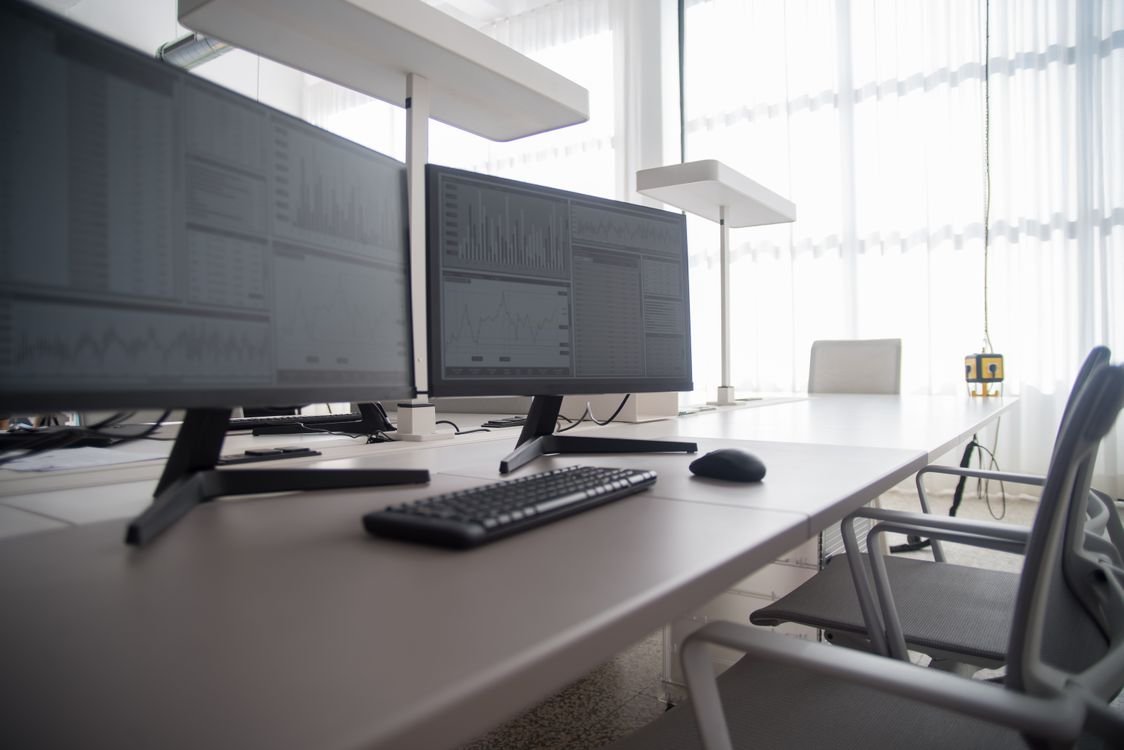
Your monitor is the part of your computer you look at all day, every day — yet it is often the last thing people think about when they buy a setup. A good screen can reduce eye strain, make text easier to read, show games smoothly and give you room to work with two windows side by side. A poor one can leave you with headaches, a sore neck and a cramped desktop.
So how to choose a monitor? It is not just about the biggest screen or the lowest price. Size, resolution, panel type, refresh rate and connections all matter, and the best choice depends on what you do most. In this guide, we explain the key specifications in plain language, and how to pick the right monitor for work, gaming and study in 2026.
Start With What You Will Use It For
Before you look at any specification, decide what the monitor is mainly for. For office work and study, comfort and text clarity matter most: a sharp, bright screen with good viewing angles and a stand you can adjust. For gaming, speed matters: a high refresh rate and a low response time make movement smoother. For photo and video work, colour accuracy matters most, and a screen that covers a wide colour range is worth paying for.
Most people do a mix of all three, so a good all-round monitor is usually the best value. If you work from home, study online and play games in the evening, look for a monitor that is good at everything rather than perfect at one thing. And think about your desk: measure the space you have, including depth, before you fall in love with a very large screen that will not fit.
Size and Resolution: The Two Numbers That Matter Most
Size is measured diagonally in inches. For most desks, 24 inches is a good minimum, 27 inches is the sweet spot, and 32 inches is best if you have a deep desk and do a lot of multitasking. A very large screen on a small desk can be uncomfortable, because you have to turn your head to see the edges.
Resolution is the number of pixels on the screen, and it decides how sharp text and images look. Full HD (1920 by 1080) is fine on a 24-inch screen, but it can look soft on a larger one. Quad HD (2560 by 1440) is the best balance of sharpness and price on a 27-inch screen, and it is a good choice for most people in 2026. 4K (3840 by 2160) is noticeably sharper and is worth it for photo and video work or a 32-inch screen, but it needs a more powerful computer to run games well, and text can look small unless you change the scaling in your settings.
As a rule, buy the highest resolution you can afford at the size you want, and make sure your computer can drive it. A laptop with a basic graphics chip will run a 4K monitor for office work without a problem, but it will struggle with demanding games at that resolution.
Panel Types Explained: IPS, VA and TN
The panel is the technology inside the screen, and it affects colour, viewing angles and speed. IPS panels are the best all-round choice for most people. They have accurate colours, wide viewing angles and good image quality, and modern IPS monitors are fast enough for most gaming. If you are unsure, choose IPS.
VA panels have better contrast, so blacks look deeper and films look richer, and they are often cheaper at larger sizes. Their weakness is viewing angles and, on some models, slower response times that can leave a slight smear behind fast-moving objects. TN panels are the fastest and cheapest, but their colours and viewing angles are weaker, so they are now mainly found in budget gaming monitors.
There are also newer OLED monitors, which have perfect blacks and superb colours, but they are expensive and can suffer from image retention if the same image stays on screen for a long time. For most buyers in 2026, a good IPS monitor remains the safest choice.
Refresh Rate and Response Time: What Gamers Should Know
Refresh rate, measured in hertz (Hz), is how many times per second the screen updates its image. A standard monitor runs at 60Hz, which is fine for office work and study. A 120Hz or 144Hz monitor updates much more often, so movement looks smoother and more natural. Once you have used a high-refresh-rate screen, going back to 60Hz can feel slow, especially in games.
Response time is how quickly a pixel can change colour, usually measured in milliseconds. A low response time — 1ms to 5ms — reduces blurring behind fast-moving objects. For most people, a 144Hz IPS monitor with a 1ms to 4ms response time is the sweet spot for gaming in 2026. You do not need a 240Hz or 360Hz screen unless you play competitive games seriously, and even then the benefit is smaller than the jump from 60Hz to 144Hz.
Adaptive sync technologies, such as AMD FreeSync and NVIDIA G-Sync, match the monitor’s refresh rate to your graphics card, so you do not get tearing — a visible split in the image when the two fall out of step. Most modern monitors support one or both, and it is worth checking before you buy, especially if you already own a graphics card.
Ports, Stands and Comfort
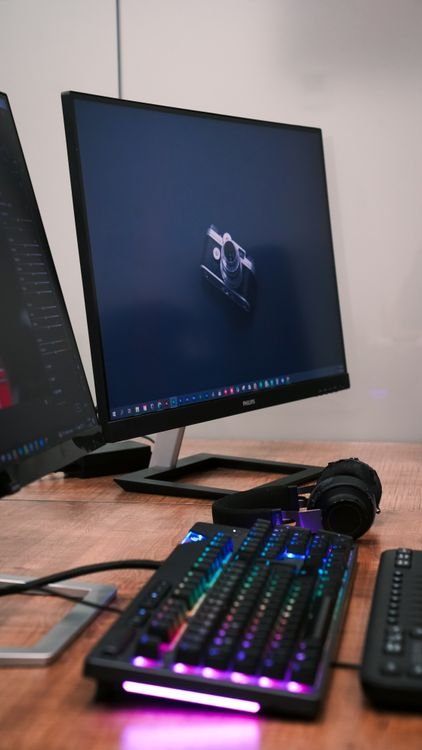
Ports matter more than most people realise. At least one HDMI port is essential, and a DisplayPort is useful for high refresh rates and higher resolutions. A USB-C port that can charge your laptop and carry video through one cable is very convenient if you use a laptop as your main computer. Check that your computer has the same ports, or budget for an adapter.
The stand matters too. A good monitor should let you adjust its height, tilt it and swivel it, so you can put the top of the screen at or just below eye level. If the stand is fixed and too low, you may end up with a sore neck. Many monitors also support a VESA mount, so you can attach them to a monitor arm and free up desk space.
For eye comfort, look for a monitor with low blue-light modes and flicker-free backlighting, and remember the basics: sit at arm’s length from the screen, take a short break every 20 minutes, and make sure your room is not too dark compared with your screen. A bright screen in a dark room is a common cause of eye strain.
Curved, Ultrawide and Dual Monitors
A curved monitor wraps slightly around your field of view, which can feel more immersive for games and films, especially on larger screens. An ultrawide monitor is wider than a normal one, so you can have two or three windows side by side without a gap in the middle. Both are good for multitasking, but they take up more desk space and cost more than a standard monitor of the same quality.
Two monitors are often a better value than one very wide one. You can keep email or notes on one screen and your main work on the other, and if one fails, you still have the other. If you go this route, try to buy two identical monitors, so the colours and brightness match and the setup looks tidy.
Whatever you choose, remember that your monitor works with the rest of your setup. If you are also choosing a computer, our guide on how to choose a laptop that will last 5 years can help you pick a machine that will match your screen.
How Much Should You Spend?
For office work and study, a good 24-inch or 27-inch Full HD or Quad HD monitor costs far less than a premium model, and it will serve you well for years. Spending more usually buys a sharper screen, a better stand and better colours, not a completely different experience. For gaming, a 144Hz Quad HD monitor is the best value in 2026, and you only need to spend more if you want 4K, a very large screen or a top-end OLED panel.
Be careful with very cheap monitors. A low price often means a poor stand, dim colours, no height adjustment and only one port. You will look at this screen for thousands of hours, so a small extra cost for comfort and image quality is usually worth it. Check the warranty too: a good monitor should last five years or more.
For more free tools that can help with your everyday tech tasks, visit the TechInsures free online tools page.
Frequently Asked Questions
How to choose a monitor for work?
Choose a 24-inch or 27-inch IPS monitor with Quad HD resolution, a height-adjustable stand and good brightness. Sharp text, wide viewing angles and a comfortable position matter more for work than a high refresh rate.
Is a 27-inch monitor too big?
Not for most desks. A 27-inch monitor is the sweet spot for many people, especially with Quad HD resolution. It gives you room for two windows side by side without taking up too much space, as long as your desk is deep enough to sit at arm’s length from it.
What refresh rate do I need for gaming?
For most games, 120Hz or 144Hz is a big improvement over 60Hz and is the best value. A higher rate, such as 240Hz, helps mainly in fast competitive games, and it needs a powerful graphics card to make full use of it.
Is 4K worth it for a monitor?
It depends. 4K is worth it for photo and video work, or on a 32-inch screen where the extra sharpness is easy to see. For general office work on a 27-inch screen, Quad HD is usually enough and costs less.
Conclusion
Choosing a monitor is easier once you know what matters. Start with how you will use it, then pick a size and resolution that fit your desk, choose an IPS panel for the best all-round image, and add a high refresh rate if you play games. Check the ports, make sure the stand adjusts to a comfortable height, and do not buy a screen that is too large for the space you have.
A monitor is a long-term purchase. You will look at it every day, so it is worth spending a little time — and a little more money — on one that is sharp, comfortable and well made. Get those basics right, and the monitor you choose in 2026 should still be serving you well in five years’ time.