
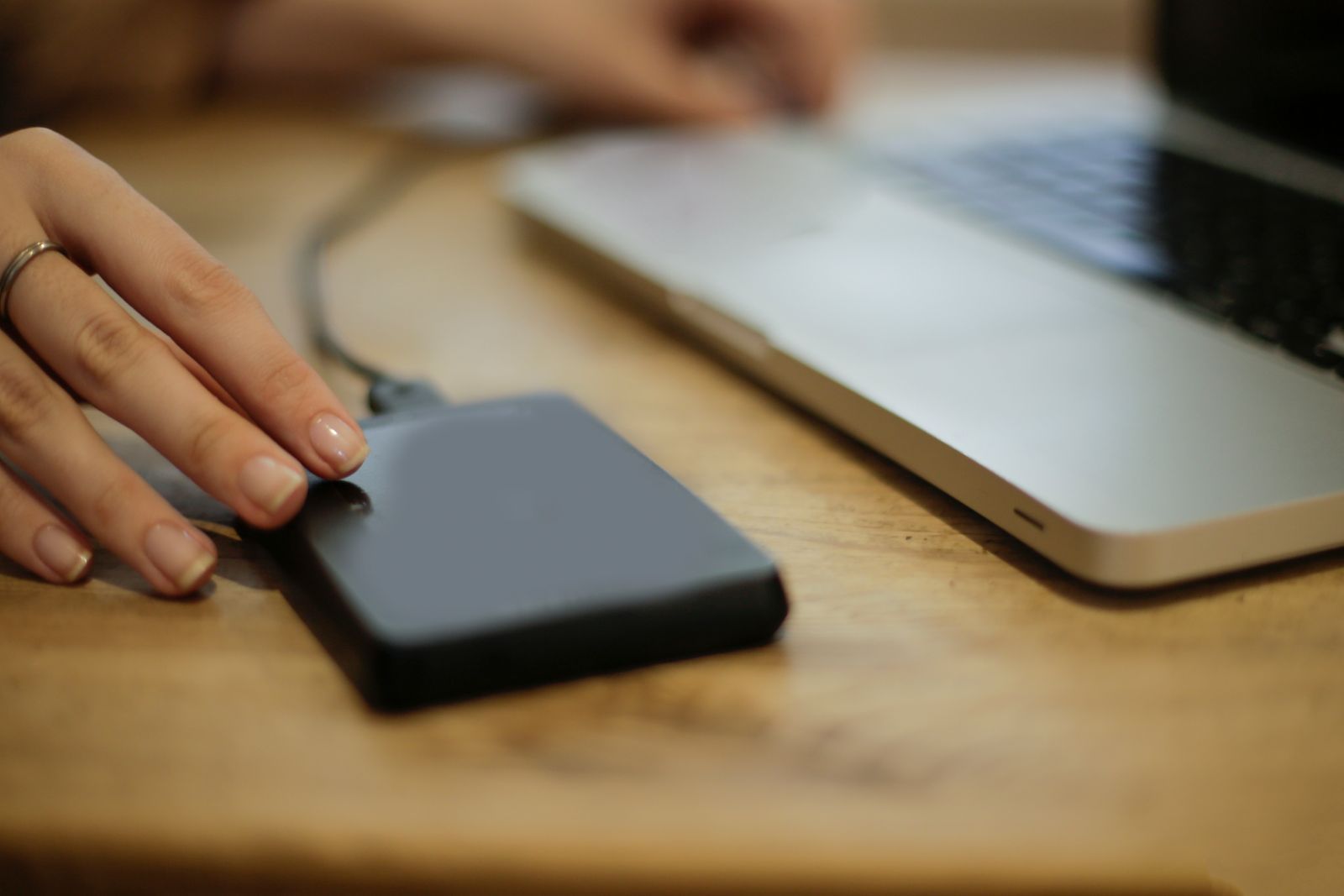
When was the last time you thought about your phone’s backup? If you are like most people, the answer is either “never” or “the day I lost everything.” Our phones hold our photos, messages, contacts, passwords, and years of memories — yet a huge number of us walk around with no backup at all. The good news is that learning how to back up your phone automatically takes about ten minutes, and once it is set up, you will never have to think about it again. This guide walks you through automatic backups on both iPhone and Android, step by step.
Why Automatic Beats Manual Every Time
Manual backups fail for one simple reason: humans forget. You might plug your phone into your computer once with every intention of doing it monthly, but life gets in the way, and eighteen months later your only backup is old enough to vote. Automatic backups remove willpower from the equation entirely. Your phone quietly copies its data to the cloud while you sleep — typically while charging, locked, and connected to Wi-Fi — so you are always protected without lifting a finger.
There is a second, less obvious advantage. Automatic backups are incremental and frequent, which means they capture the small, recent things you would never think to back up manually: yesterday’s text conversation with your landlord, the photos from this morning’s walk, the note you dictated in the car. When disaster strikes — a cracked screen, a stolen phone, a dunk in the swimming pool — it is almost always the recent stuff you miss most. A backup from last night beats a backup from last year every single time.
Finally, automatic backups make switching phones dramatically easier. When your new device asks if you want to restore from a backup during setup, saying yes can transfer your apps, settings, messages, and photos in under an hour. People who back up automatically describe new-phone setup as almost magical; people who do not describe it as a weekend-long chore of re-downloading and re-logging-in to everything.
How to Back Up Your iPhone Automatically
On iPhone, automatic backup runs through iCloud, and setup takes about two minutes. Open Settings, tap your name at the top, then tap iCloud. Tap iCloud Backup and make sure the toggle is switched on. That is genuinely the whole setup — your iPhone will now back up automatically whenever it is locked, charging, and connected to Wi-Fi, which for most people means every night.
The main thing to watch is storage. Apple gives every Apple Account 5 GB of free iCloud storage, which is not enough for most people’s full phone backup. If your backup will not complete, check Settings > [your name] > iCloud > Storage to see what is using space. You have two options: pay for iCloud+ (plans start cheap and the 50 GB tier covers most single users), or slim down what gets backed up by toggling off apps whose data you do not care about under iCloud Backup > Back Up Now options. Photos are usually the biggest chunk — we will deal with those separately below.
To verify it is working, go to Settings > [your name] > iCloud > iCloud Backup and look for the date and time of the last successful backup. If it says last night, you are protected. You can also tap Back Up Now to run one immediately — useful before a software update or a trip. And if you ever want extra peace of mind, you can still make an encrypted backup to a Mac or PC through Finder or iTunes; it is not automatic, but it is a nice belt-and-suspenders copy before big changes.
How to Back Up Your Android Phone Automatically
On Android, automatic backup runs through your Google Account via Google One backup. Open Settings, then go to System > Backup (on Samsung phones, it is under Settings > Accounts and backup). Make sure Backup by Google One is switched on. Your phone will then automatically back up app data, call history, contacts, device settings, and SMS messages to your Google Account whenever it is charging and on Wi-Fi.
Google gives every account 15 GB of free storage shared across Gmail, Google Drive, and Google Photos, which is more generous than Apple’s free tier but still fills up. Check your usage in the Google One app or at one.google.com. If you are running out, the usual culprits are email attachments hoarded in Gmail and full-resolution photo backups. Google One plans are inexpensive, and the 100 GB tier is enough for the majority of users’ phone backups with room to spare.
Samsung owners get a second option: Samsung Cloud, which can back up additional Samsung-specific data like Secure Folder contents and some system settings. There is no harm in running both Google One backup and Samsung Cloud side by side — redundancy is the entire point of backing up. Just make sure at least one of them is actually switched on and completing successfully, which you can verify in the same Settings screen where you enabled it.

What Exactly Gets Backed Up?
It helps to know precisely what your automatic backup covers — and what it does not. On both iPhone and Android, a standard cloud backup includes your installed apps and most app data, device settings and preferences, your home screen layout, call history, text messages, contacts, calendars, and passwords stored in the built-in password manager. When you restore, your new phone feels remarkably like your old one.
What is typically not included: data already synced elsewhere (your Gmail, for example, lives on Google’s servers and does not need backing up), content from some third-party apps that manage their own cloud sync (WhatsApp has its own backup setting you must enable separately — do not skip this, as years of chats can vanish otherwise), and media synced from a computer, like music you manually copied over. Banking apps also deliberately exclude login credentials for security, so expect to re-authenticate those after a restore.
The takeaway: your built-in backup covers the operating system layer beautifully, but audit your most important apps individually. Open WhatsApp, your authenticator app, and any note-taking or journaling apps, and confirm each has its own cloud backup or sync switched on. Authenticator apps deserve special attention — losing your two-factor codes can lock you out of accounts far more painfully than losing photos.
Photos and Videos Deserve Special Attention
Photos and videos are usually what people care about most, and they are also what fills storage fastest. Both Apple and Google handle photo backup as a partly separate system from the device backup, and understanding it will save you headaches.
On iPhone, iCloud Photos (Settings > [your name] > iCloud > Photos) syncs your entire library across all your Apple devices. With Optimize iPhone Storage enabled, your phone keeps lightweight previews while full-resolution originals live in iCloud — this alone can free tens of gigabytes. On Android, Google Photos backup (in the Photos app under your profile > Photos settings > Backup) does the same job and works across platforms, which is handy if you ever switch between iPhone and Android.
One caution: sync is not the same as backup. If you delete a photo, synced deletion removes it everywhere, including the cloud copy (though both services keep a trash folder for 30–60 days). For irreplaceable memories — wedding photos, baby videos — consider a true second copy somewhere independent, like an external hard drive or a second cloud service. The TechInsures Tools hub has free utilities that can help you audit and organize large file collections before you archive them.
Add a Local Backup: The 3-2-1 Rule
Cloud backup is convenient, but professionals follow the 3-2-1 rule: three copies of your data, on two different media, with one copy offsite. Your automatic cloud backup is the offsite copy. Adding a local copy — on an external hard drive or your computer — protects you against the rare but real risks of cloud-only backup: a hacked account, a billing failure that deletes your storage, or simply needing to restore gigabytes of data faster than your internet allows.
For iPhone, connect to a Mac and choose your device in Finder (or iTunes on Windows), then select Back up all of the data on your iPhone to this Mac and tick Encrypt local backup — encryption is important because otherwise saved passwords and health data are excluded. For Android, a local backup is less unified, but copying your DCIM (photos), Downloads, and other folders to a computer over USB covers the irreplaceable files, and apps like Google’s own backup handle the rest.
You do not need to do local backups nightly — monthly or before big trips and updates is plenty. Put a recurring reminder on your calendar. External SSDs are fast, compact, and inexpensive now, and a single 1 TB drive can hold local backups for every device in a household with room to spare.
How to Verify Your Backup Actually Worked
A backup you have never tested is a hope, not a plan. Fortunately, verification is quick. On iPhone, check Settings > [your name] > iCloud > iCloud Backup for a recent timestamp and a plausible size — if your phone holds 80 GB of data and the backup claims 200 MB, something is excluded that should not be. On Android, open Settings > System > Backup and confirm the last backup time is recent and the categories (apps, photos, SMS) show expected sizes.
Once a year, go one step further: restore-test in a safe way. You do not need to wipe your phone — instead, sign into iCloud.com or your Google Account on the web and confirm your photos, contacts, and Drive files are actually there and open correctly. For WhatsApp, check its in-app backup screen for a recent Google Drive or iCloud timestamp. Five minutes of checking beats five hours of panic later.
Before You Switch Phones: The Migration Checklist
Upgrading your phone is the moment backups pay for themselves. Run through this checklist the night before: first, force a fresh backup manually (Back Up Now on iPhone; Back up now on Android) while on Wi-Fi and plugged in, and confirm it completes. Second, make sure you know your Apple Account or Google Account password — you would be amazed how many migrations stall because someone has not typed that password in three years. Third, transfer or back up your authenticator app and WhatsApp chats explicitly, since these are the two most commonly lost items.
During setup of the new phone, choose restore from backup rather than setting up as new — the transfer typically takes 30 to 90 minutes depending on how much data you have. Keep both phones nearby and on Wi-Fi until everything finishes syncing, especially photos, which often continue downloading in the background for hours after the phone first becomes usable. Do not wipe or trade in the old phone until you have confirmed the new one has everything.
Troubleshooting: When Backups Fail
If automatic backups stop completing, the cause is almost always one of four things. The most common is full cloud storage — both Apple and Google will warn you, but the warnings are easy to dismiss. Free up space or upgrade your plan. Second is Wi-Fi: backups usually wait for Wi-Fi by default, so if you have been on cellular data for days (travel, a broken router), no backup has run — connect to Wi-Fi overnight. Third is power: the phone generally needs to be charging, so chronic low-battery overnight habits can silently pause backups.
Fourth, on iPhone, an outdated iOS version can occasionally stall iCloud Backup; updating usually resolves it. If none of these apply, the classic fix works: turn the backup toggle off, restart the phone, and turn it back on. If problems persist across several days, contact Apple Support or your Android manufacturer’s support — but in our experience, nine times out of ten it is storage, Wi-Fi, or power.
Conclusion
Learning how to back up your phone automatically is one of the highest-value ten-minute tasks in all of personal technology. Turn on iCloud Backup or Google One backup, make sure your photos are syncing, add an occasional local copy for good measure, and verify once in a while that it is all working. Then forget about it — that is the entire point. The next time your phone meets concrete, water, or a forgetful moment in a taxi, you will restore everything over coffee instead of mourning years of memories. Future you says thanks.
Frequently Asked Questions
Does automatic backup use mobile data?
By default, no. Both iPhone and Android wait for a Wi-Fi connection (and usually charging) before running automatic backups. You can allow cellular backups in settings, but it is rarely necessary and can eat through a data plan quickly.
How much iCloud or Google storage do I need?
It depends on your photos. Most people fit comfortably in 50 GB (iCloud+) or 100 GB (Google One). Check your current backup size in Settings, add headroom for growth, and remember that decluttering photos and old message attachments is free.
Are my backups private and secure?
Yes. Backups are encrypted in transit and at rest on Apple’s and Google’s servers. iCloud offers Advanced Data Protection for end-to-end encryption of most categories. Use a strong, unique account password with two-factor authentication — your backup is only as secure as your account.
What happens to my backup if I stop paying for storage?
If your paid plan lapses or you exceed free storage, new backups will fail but existing data is typically retained for a grace period. Downgrade gracefully: reduce what you back up or move photos elsewhere before canceling, and never let storage fill up unnoticed.
Pingback: How to Set Up a New Phone: A Step-by-Step Checklist